HELP CENTER · LIBRARY AND CONTACTS
Contacts: every guest in one place
Contacts collects your guests from everything that is connected: the Guest WiFi sign-in page, OwnerRez bookings once a property is connected on Reservations, and anyone you add by hand. Each row says where it came from and which house they stayed at, and the whole list exports to CSV for your email tool.
What you can do
Where contacts come from
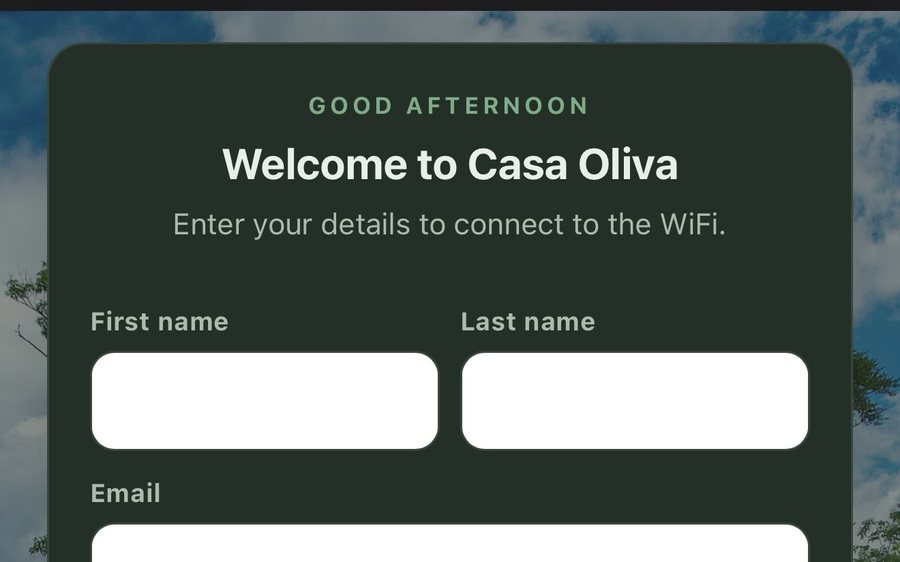
- WiFi portal: every phone that signs in on your Guest WiFi page, not only the person who booked. Name and email are required there, phone is optional, and the property is the one the network belongs to.
- OwnerRez: once a property is connected on Reservations, your OwnerRez guest list comes across on the next sync and keeps coming (the full history first, then a rolling two months). Guests you banned in OwnerRez are skipped.
- Manual: anyone you add with Add contact.
Airbnb bookings do not bring contacts: Airbnb hides guest email addresses from everyone, including Hospitable. The WiFi sign-in page is how you get the email of every Airbnb guest.
The columns
- Name, Email, Phone: the contact details. A contact needs at least a name or an email.
- Opt-Out: Email, SMS, both, or a dash. See Marketing opt-outs below.
- Notes: yours, free text.
- Source: Manual, OwnerRez or WiFi portal.
- Property: the house they stayed at. OwnerRez contacts arrive without one, since a guest may have stayed at several.
Every column sorts (click the heading) and the columns resize by dragging their edges. The list shows 25 at a time.
Adding and editing by hand
- Click Add contact, fill in what you have, pick a Property if it applies, and click Save contact.
- Click Edit on any row to change it, Save to keep the change.
An OwnerRez contact you edit here gets overwritten by the next sync (name, email, phone and opt-outs come from OwnerRez). Put what you want to keep in Notes, which the sync never touches.
Marketing opt-outs
Two switches per contact, Opted out of marketing email and Opted out of marketing SMS. A WiFi sign-in sets the email one from the consent checkbox on your sign-in page (checked by default, with wording you can edit on the WiFi page); OwnerRez passes its own opt-out flags through; manual contacts are whatever you tick.
Honor them. The CSV export carries both columns so your email tool can suppress the right people.
Search and export
- The search box matches name, email, phone, notes and property.
- Export CSV downloads the contacts you are looking at (after search), as `tabellara-contacts-<date>.csv` with first name, last name, email, phone, both opt-outs, source, property, notes and the date added.
Deleting
- Delete on a row, or tick several and Delete selected.
- A manual contact is gone for good. A contact that came from an integration leaves your list, but a future sync of the same guest can bring it back.
Deleting a contact does not delete their WiFi sign-ins or store orders; those keep their own records.
Next: Set up Guest WiFi: the sign-in page on your own equipment →
Common questions
Does every WiFi sign-in make a new contact?
One per email address per host. A guest who signs in at two of your houses, or on a second visit, stays one contact; blanks (a phone they did not give the first time) get filled in.
What did guests agree to on the sign-in page?
Your consent sentence (the default reads: by checking this box, you agree to receive emails regarding upcoming availabilities, new properties, and/or discounts) plus Tabellara's Terms and Privacy links, and your own WiFi terms if you turned them on. Each sign-in records which version they saw.
Can I upload a CSV of contacts?
Not yet. Add them by hand, or connect OwnerRez and let the sync bring them.
Is this a marketing email tool?
Not yet. Export the CSV into the tool you use; the opt-out columns are there so it can suppress correctly.
Go further
A guidebook is the start of the stay. These run on it, at the same properties, from the same dashboard.
Tabellara WiFi
Guests join your network through a branded sign-in page and land in the guidebook. Every name and email is yours to keep. Runs on the UniFi gear you already own: $6 a network, the first free for 30 days.
Tabellara TV
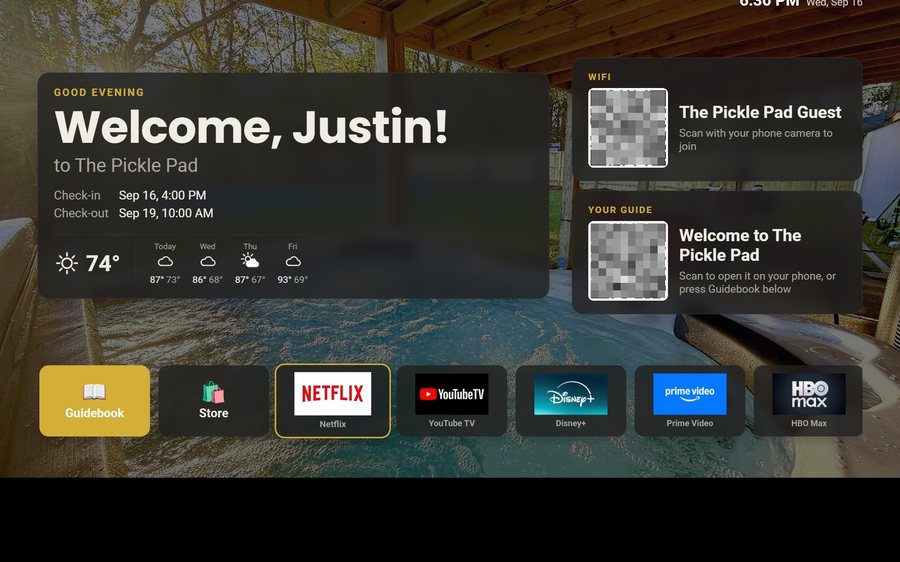
Your guidebook on the onn or Google TV in the living room: a welcome by name, the WiFi and guide codes on screen, and every app signed out at checkout. $6 a property for up to three TVs, the first free for 30 days.
Still stuck?
Email support@tabellara.com and a human will help; we usually reply the same day.
All help articles