HELP CENTER · GUEST WIFI
Set up Guest WiFi: the sign-in page on your own equipment
Guest WiFi turns the guest network your property already broadcasts into a branded sign-in page: guests enter a name and email, get online for 30 days, and land in your guidebook. It runs on your own UniFi equipment, so there is nothing to buy or install.
The whole flow
Step 1. Create our service account in UniFi
- Log into your UniFi account and open the People page.
- Click Create New, then Create New User.
- First name IT, last name Tabellara, email it@tabellara.com. All three must be exactly right or the connection fails.
- Check the Admin box and click Create.
No Admin checkbox? Remote access is off on your console. Go to Settings › Control Plane › Console, enable Remote Access, then create the user again.
Step 2. Connect your site with one MAC address
- In UniFi open Devices, click any access point at the property, and scroll the panel on the right to its MAC address. Copy it. It is also printed on the device.
- On the Guest WiFi page in your dashboard, paste it under Access point MAC address and click Connect.
Any access point at the property works; one address connects the whole site. An invitation not linked within 24 hours is removed automatically; just create the user again.
Step 3. Add a WiFi network
- Click Add a WiFi network.
- Choose the guide its guests should land in.
- Pick an existing guest network, or create a new one with its own name and password, and choose which access points broadcast it.
- Turn it on.
Pricing is per network, not per access point, so put as many access points behind one guest network as the property needs.
If you pick a network that has smart home devices on it, a warning explains the risk first: a sign-in page makes every device prove itself, and a thermostat cannot. Give guests their own network.
Step 4. Design the sign-in page
Each network's sign-in page starts by matching its guide's look. Click Edit sign-in page for the headline, welcome message, greeting by time of day, logo, background, themes, terms of use and consent wording, with a live phone preview. See Design the WiFi sign-in page.
Step 5. Manage networks and devices
- The Guest WiFi networks table shows every network with its guide, site, connected device count and sign-in page status.
- Configure renames a network, changes its password or the access points that broadcast it.
- Devices lists who is online, with options to disconnect a device or erase its sign-in so the page appears again.
- Turn off keeps the network running without the sign-in page. Remove takes the network out of Tabellara.
Licenses, trial, and what happens if you stop paying
- A network needs a published guidebook at the same property.
- Each WiFi license covers one network at $6 a month or $54 a year, managed from Settings like guidebook licenses: additions are prorated, reductions take effect at renewal.
- Your first network runs free for 30 days.
- If a payment fails, a 30-day grace period runs with reminders. After that the sign-in page is removed and the network itself is left exactly as it was, so guests keep their internet.
Common questions
Do my guests need the WiFi password AND the sign-in page?
Yes, both layers stay: the WiFi password gets a device onto the network, and the sign-in page authorizes it for internet. You can also create the guest network without a password so the sign-in page is the only step.
Where do the collected emails go?
Every sign-in becomes a contact on your account with name, email, property and the exact consent wording the guest agreed to. Analytics also shows which WiFi network each guidebook visit came from.
How does pricing work across networks and guides?
You pay $6 a month per WiFi network, no matter how many access points broadcast it. Several networks can point at the same guide, or each network can have its own guide.
What equipment does it work with?
UniFi today, including hosted controllers. Support for more equipment brands is planned; pricing stays per network either way.
Go further
A guidebook is the start of the stay. These run on it, at the same properties, from the same dashboard.
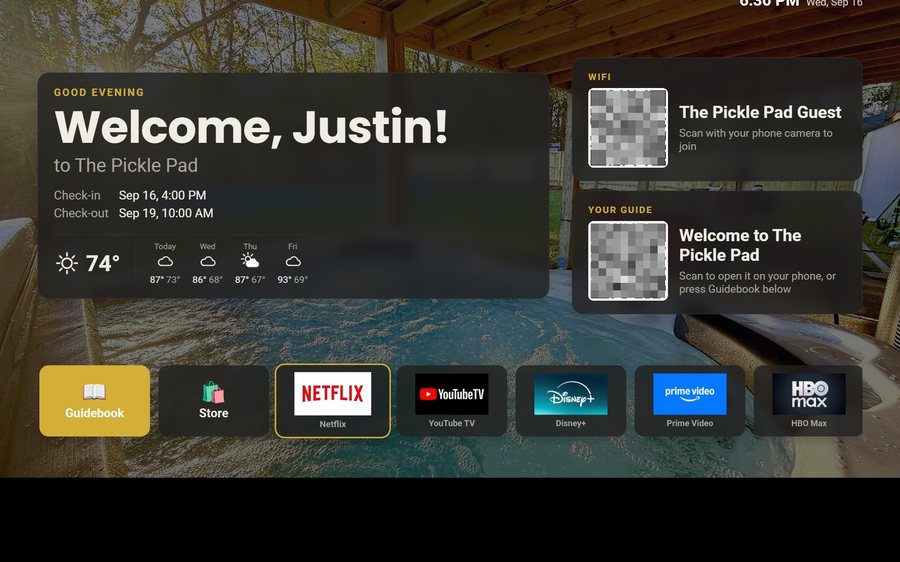
Guest TV
Your guidebook on the onn or Google TV in the living room: a welcome by name, the WiFi and guide codes on screen, and every app signed out at checkout. $6 a property for up to three TVs, the first free for 30 days.
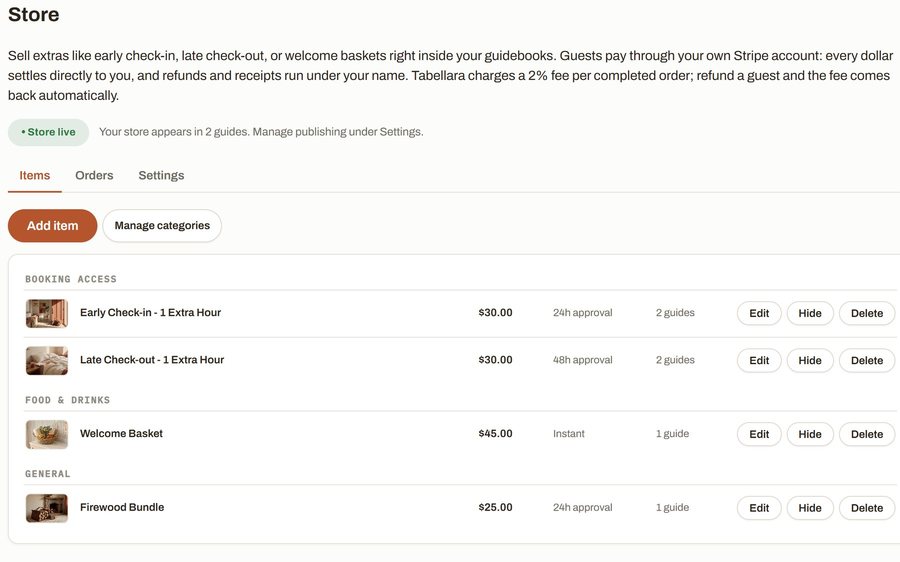
Guest Store
Sell late checkout, a welcome basket or firewood from inside the guide, paid through your own Stripe account. 2% per completed order and no license.
Still stuck?
Email support@tabellara.com and a human will help; we usually reply the same day.
All help articles