HELP CENTER · TABELLARA TV
Set up your Google TV
Tabellara TV runs the television: the welcome by name, the WiFi and guide codes, your guidebook on screen, and a sign-out after every stay. To do that it has to own the device, which Android only allows during setup, so the first ten minutes happen with a laptop on the same WiFi as the TV. After that, everything is remote from the Screens page.
The whole flow
What you need
- A television that runs Google TV or Android TV, or any television with a streaming box on it: an onn 4K box, a Google TV Streamer, a Chromecast with Google TV, a Hisense or TCL set. Fire TV, Roku, Samsung and LG televisions are not supported.
- A Windows or Mac computer on the same WiFi as the TV.
- A Tabellara property with a published guidebook. A TV belongs to a guidebook.
- The TV's remote.
We sell no hardware. If the television is not a Google TV, an onn 4K box from Walmart or a Google TV Streamer turns any HDMI television into one.
Step 1. Developer mode on the TV
- Open Settings › System › About.
- Select Android TV OS build and press OK seven times, until the TV says you are a developer.
- Go back to System and open Developer options.
- Turn on USB debugging and Network debugging (some sets call it Wireless debugging or ADB over network).
- Make sure the TV is on the same WiFi as your computer, not the guest network.
Menu names vary a little by maker. If you cannot find Developer options, it is always under System after the seven presses on the build number.
Step 2. Remove the Google account, not a factory reset
Android only lets an app take ownership when no account is signed in.
- Open Settings › Accounts & sign-in.
- Select the Google account and choose Remove.
- On the next screen choose Remove and go offline (newer sets say Remove account & switch to Basic Mode).
Hisense and some TCL sets offer a Basic mode instead of a full Google sign-in. Basic mode still counts as an account here: remove it too, or the Tabellara App will report that a user profile is in the way. Step 7 adds an account back.
Do not choose Set up Google TV or Reset device. A factory reset also wipes developer mode and the debugging switch you just turned on.
Step 3. Run the Tabellara App on your computer
- Open Screens in your dashboard and click Download for Windows or Download for Mac to get the Tabellara App.
- Open the download. The Windows app is signed by Tabellara LLC; if Windows still asks the first time, choose More info, then Run anyway. On a Mac, if it says the app cannot be opened, go to System Settings › Privacy & Security and choose Open Anyway.
The app is signed by us and does one job: it talks to the TV over your WiFi. Nothing is installed on your computer.
Step 4. Scan and pick the TV
- Click Scan my network. Every Google TV on the WiFi appears with its IP address and model in about ten seconds.
- If yours is missing, check Step 1 again (Network debugging on, TV awake), or type the TV's IP address under Enter the IP address. It is under Settings › Network & Internet, on the WiFi network name.
- The first time, the TV shows an Allow debugging? prompt. Tick Always allow and choose OK with the remote.
Step 5. Set up
- Click Set up next to your TV.
- Wait about a minute. The app removes any stray profile, installs Tabellara TV, makes it the device's owner and restarts the box.
- The television comes back showing the Tabellara claim screen with a six-character code.
If the app reports that ownership was refused, an account is still signed in on the TV. Go back to Step 2, remove it, and click Set up again.
Step 6. Claim it on Screens
- On the Screens page, type the code from the television under Code on the screen.
- Name the TV (Living room, Bedroom 2). Guests see this name when they cast to it.
- Pick its guide and click Claim screen.
Your first property rides a 30-day trial. After that, or at a second property, the dialog offers the TV license, an additional-TV line for a fourth television, or the bundle when the property also has Guest WiFi. Within a minute the TV shows that property's welcome screen.
Step 7. Sign in a house Google account
So the Play Store can install streaming apps, the TV needs a Google account again. Use a spare account made for the house, never your personal one.
- On the TV's card on Screens, choose Sign in a Google account and follow the prompts. The card walks the TV through it and reports each step.
- Under Apps to install, tick the streaming apps you want as tiles on the welcome screen.
The remote's microphone only works when the remote is paired over Bluetooth, which Hisense and TCL sets sometimes skip during setup. If the TV says Sorry, that didn't come through when a guest speaks, pair the remote from Settings › Remotes & accessories.
A personal account on a rental TV shows guests its email, its saved passwords and its watch history. Make a free Google account just for the TVs, such as casaolivatv@gmail.com.
Release, unclaim, and This TV is gone
Three links at the foot of a TV's card, for three situations. Each frees the TV's license for another television.
- Completely remove Tabellara (restore Google TV) hands the screen back to Google's launcher, reboots once, keeps the Google account and turns debugging back on. For a box you are done with, or want to set up fresh.
- Unclaim is the inverse of Claim: it takes the box off this property and account but keeps Tabellara in control. Within a minute it shows a fresh claim code, so you or another account can claim it again, here or at another property.
- This TV is gone: remove it from my account is for a television that is broken, lost, or no longer at the property. The card goes at once, Tabellara stops serving it, and the license is free. Nothing waits for the box.
What guests see, and what they can change
- The welcome screen with their name, dates, weather, the WiFi and guide codes, and the app tiles you allow.
- The settings, the account list, the app installer and the Home button are locked to that screen. The remote's inputs still work for a console or a cable box through an Inputs tile.
- Guests sign into Netflix and the rest from the tiles as on any Google TV. On checkout day every app is signed out and what they watched is cleared.
- You can open the settings any time from the card with a host code that expires after fifteen minutes.
Licenses, trial, and what happens if you stop paying
- A TV license is $6 a month or $54 a year per property, covering up to three televisions. A fourth is $2 a month.
- A property with a guidebook, Guest WiFi and a TV on separate licenses becomes the $15 bundle on its own.
- Your first property runs free for 30 days. If the trial ends with nothing covering the TV, it returns to its normal Google TV home screen that day.
- If a payment fails later, a 30-day grace period runs with five reminder emails. After that the uncovered televisions revert to Google TV on their own and the TV lines come off your subscription. Nothing else on your account changes, and running the setup app again brings a TV back.
The plain-ADB route, for the comfortable
The Tabellara App wraps four ADB commands. With platform-tools on your path you can run them yourself:
adb connect <TV IP>:5555
adb install tabellara-tv.apk
adb shell dpm set-device-owner com.tabellara.tv/.Admin
adb reboot
If set-device-owner says an account or a secondary user is in the way, remove it on the TV and try again. The APK is the same file the Screens page downloads.
Next: Run your Google TV: the account, the welcome, ratings, notices, the screensaver and checkout →
Common questions
Can I install it from the Play Store instead?
No. A Play Store install can never be the device's owner, and ownership is what lets Tabellara sign guests out, clear what they watched, lock the settings and keep the screen on your welcome. The laptop step is the price of that; it takes ten minutes once.
The Tabellara App cannot see my TV.
Nine times in ten, Network debugging is off or the TV went to sleep. Turn the TV on, check Developer options, and click Scan again. If the app still cannot see it, type the IP address from the TV's network settings. Some routers isolate WiFi clients from each other; if yours does, a laptop on a cable to the same router works.
Setup says ownership was refused.
An account or a user profile is still on the TV. Open Accounts & sign-in and remove every account, including a Basic mode profile on Hisense and TCL sets, then click Set up again.
Does it work without internet?
The TV keeps a copy of your guide and the upcoming reservations, so the welcome, the codes and the guidebook stay on screen through an outage and catch up when the connection returns.
Can I use the TV normally between guests?
Yes. Open the settings from the card with the host code, or use the Inputs tile for a console or cable box. Pressing Home always returns to the Tabellara welcome, which is the point.
Go further
A guidebook is the start of the stay. These run on it, at the same properties, from the same dashboard.
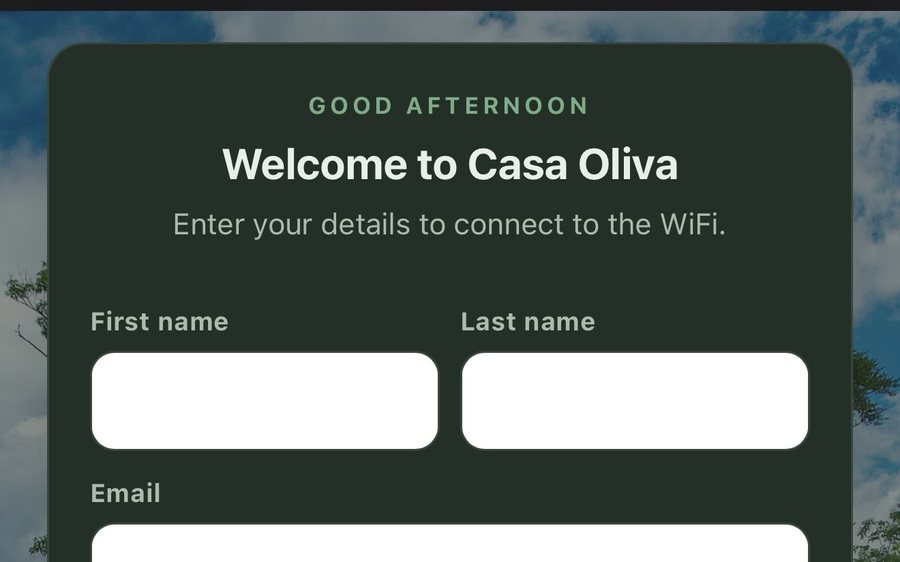
Guest WiFi
Guests join your network through a branded sign-in page and land in the guidebook. Every name and email is yours to keep. Runs on the UniFi gear you already own: $6 a network, the first free for 30 days.
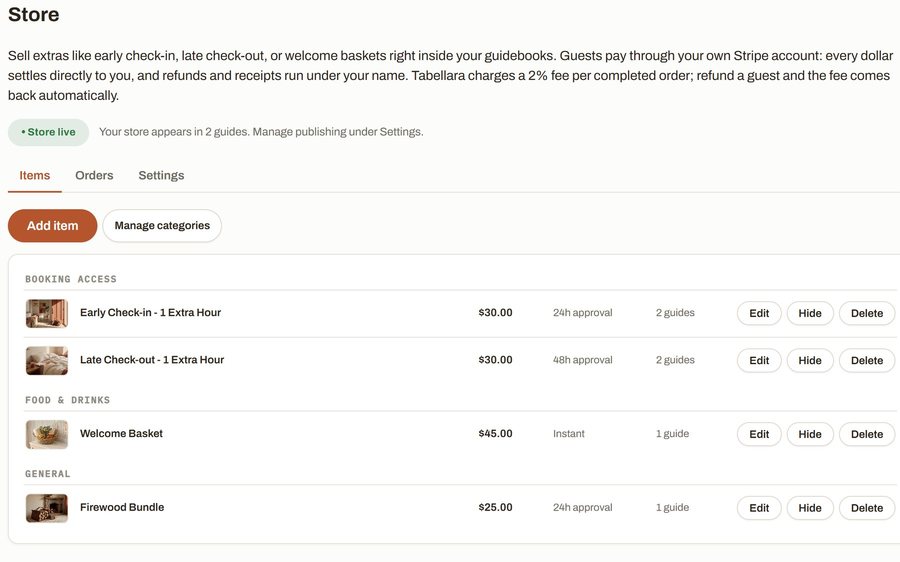
Guest Store
Sell late checkout, a welcome basket or firewood from inside the guide, paid through your own Stripe account. 2% per completed order and no license.
Still stuck?
Email support@tabellara.com and a human will help; we usually reply the same day.
All help articles