HELP CENTER · STORE
Sell upsells with the Guest Store
The Guest Store adds a Store tab to your guidebooks where guests buy extras with a card. You connect your own Stripe account, every payment settles directly to it, and you are the seller of record, so receipts, refunds and payouts run under your name. Tabellara receives a 2% platform fee per completed order.
The whole flow
Step 1. Connect payments
- Open Store in your dashboard and click Set up payments with Stripe.
- Stripe walks you through creating or connecting a standard Stripe account in your name: identity, bank account, business details. Usually about ten minutes.
- You land back on the Store page with payments connected.
This is your account, not ours; you get your own Stripe dashboard with payouts, receipts and reports. Charges appear on guest statements under your Stripe business name, so pick a recognizable one.
Step 2. Add items
- On the Items tab, click Add this item on any of the prefilled ideas (early check-in, late check-out, welcome basket) to open it in the editor with a photo, price and settings.
- Or click Add item to build one from scratch: name, price, category, description and a photo from your Library.
- Click Save item.
After-purchase instructions are only shown once an order is confirmed, so lockbox codes and where-to-find-it details are safe there.
Step 3. Choose how each item is approved
- Instant charges the guest at checkout. Best for things you can always fulfill.
- Approve first authorizes the card but charges nothing until you approve, within the window you pick (24, 48 or 72 hours). Decline, or let the window pass, and the hold is released.
- Tick Limit to one per order for things like early check-in where a quantity makes no sense.
Step 4. Link items to guides
Under Shown in guides, tick the guides an item appears in and set an optional price in this guide, so Early Check-in can be $30 at the cabin and $50 at the beach house from one catalog entry. The Store tab appears in a guide automatically once your store is published and at least one item is linked there.
Step 5. Publish
- Open the Settings tab of the Store page.
- Publishing needs a live Stripe connection, at least one active item, and terms of sale: use the Tabellara starter template, link your own page, or upload a PDF.
- Click Publish store. Until then, guests see nothing.
Step 6. Handle orders
- New orders that need a decision reach your email with one-tap Approve and Decline buttons that work without logging in.
- The Orders tab shows every order with the guest's name, email, check-in date, items, total and status, with the same buttons.
Reminders arrive at roughly the halfway point and near the end of an approval window, so a hold never expires unnoticed.
Refunds
Approved orders have a Refund button in the Orders tab: the full amount returns to the guest's card, the guest is emailed, and Tabellara's 2% fee is returned to you automatically. Stripe does not return its own processing fee on refunds, which is standard. For partial refunds, use your Stripe dashboard.
See how the store performs
Analytics › Store shows unique visitors, completed orders, revenue with the exact fees broken out, refunds, lost potential revenue from declines and expiries, a category split, and a per-item ledger you can export as CSV.
Common questions
What does the store cost?
The store is included in your subscription. Per order, Tabellara receives a 2% platform fee, routed automatically by Stripe, and Stripe charges its standard processing fee. Both are broken out to the cent in Store analytics.
Does money pass through Tabellara?
No. Guests pay into your Stripe account directly; you are the merchant of record. Our 2% fee is transferred by Stripe as part of settling the charge; we never hold your funds.
Who handles disputes and chargebacks?
You do, through your own Stripe dashboard, because the sale is yours. Approve-first items help: declining an order you cannot fulfill costs nothing and prevents most disputes before they exist.
When do I get paid?
On your Stripe payout schedule, which Stripe sets per account and country. Your Stripe dashboard shows the exact timing.
Can guests order without a stay link?
Yes, anyone viewing a published guide can order; they enter a name and email at checkout. Orders placed through a personal stay link additionally attach to that reservation and guest contact.
Go further
A guidebook is the start of the stay. These run on it, at the same properties, from the same dashboard.
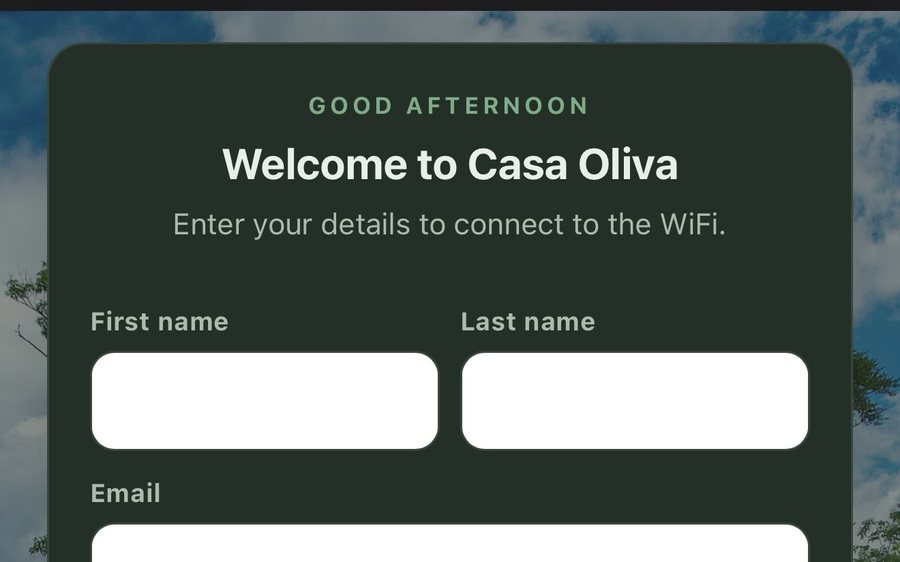
Guest WiFi
Guests join your network through a branded sign-in page and land in the guidebook. Every name and email is yours to keep. Runs on the UniFi gear you already own: $6 a network, the first free for 30 days.
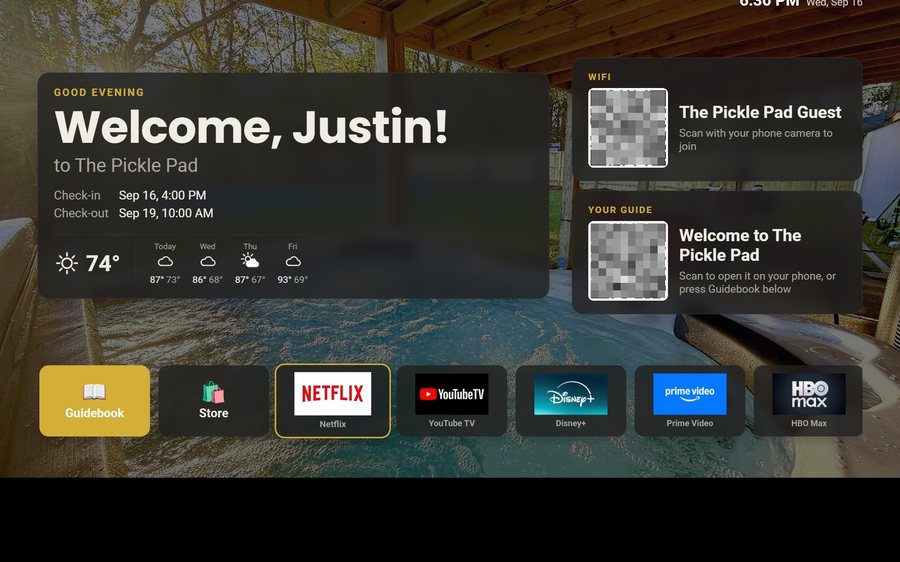
Guest TV
Your guidebook on the onn or Google TV in the living room: a welcome by name, the WiFi and guide codes on screen, and every app signed out at checkout. $6 a property for up to three TVs, the first free for 30 days.
Still stuck?
Email support@tabellara.com and a human will help; we usually reply the same day.
All help articles