HELP CENTER · INTEGRATIONS
Hostaway integration
Connecting Hostaway brings your listings in with their descriptions, house rules, house manuals, WiFi and photo galleries, and one click turns each one into a complete guide. For the listings you connect on Reservations, bookings flow in from every channel Hostaway manages, each with its own personal guide link. The link can reach the guest two ways: Tabellara sends it through Hostaway a few minutes after booking, or you merge it into your own Hostaway message templates. Hostaway hosts also get 90 days free (instead of 30) on their first guide, their first WiFi network and their first 3 TVs.
Steps to complete your integration
- Create an API key in Hostaway and connect (about two minutes)
- Import the listings you want guides for
- Create a guide for each listing with AI
- Review, tweak and publish
- Connect listings on Reservations for stay links
- Turn on the guide-link message on Journey, or merge {{reservation_tabellara_guide_link}} into a Hostaway template
Step 1. Create an API key and connect
- In Hostaway open Settings › Hostaway API. Your Account ID is at the top of the page.
- Click Create, choose Tabellara as the partner (or Hostaway Public API if Tabellara is not in the list yet), name the key Tabellara, and click Create. Copy the key: Hostaway shows it once.
- In your Tabellara dashboard open Integrations, click Connect on the Hostaway card, paste the Account ID and the key, and click Connect Hostaway. The card shows Connected and lists your listings.
The key lets Tabellara read your listings, their content and photos, and your reservations, and write exactly one thing back: each booking's guide link, into a custom field named Tabellara guide link. Tabellara never changes your listing, calendar or pricing. If the card says Hostaway's API is off for the account, add at least one listing in Hostaway first.
Step 2. Import your listings
- Under Import your listings, tick the ones you want guides for and click Import selected.
- Each one becomes a property in Tabellara with its name, check-in and checkout times, time zone and WiFi filled in.
Importing never starts reservation syncing. That is a separate, deliberate step on the Reservations page.
Step 3. Create a guide for each listing
- Under Your properties, click Create my guide on a listing.
- Tabellara pulls the listing's photo gallery into your Library, then hands the description, house rules, house manual, WiFi and amenities to the AI, which writes every section, places the photos and styles the guide around your cover. It opens in the editor in about a minute.
- Use Import photos on its own to bring a gallery into the Library without building a guide.
Step 4. Review, tweak and publish
Read the guide through in the editor with the phone preview beside it, fix anything the AI could not know, add your own recommendations, and click Publish. Hostaway hosts get 90 days free on the first guide; publishing is where the clock starts.
Step 5. Connect listings on Reservations
- Open Reservations. Next to a published guide, pick the Hostaway listing from the Property listing dropdown and click Connect.
- Bookings sync in within moments, each with a personal stay link, and stay current through Hostaway webhooks. Cancelled bookings stop resolving.
Step 6. Send every guest their guide link
Two ways, pick one so guests are not messaged twice:
- From Tabellara. Open Journey, pick the property, and turn on Message your guests their personalized guide link automatically. A short message you write goes out a few minutes after booking: in the channel thread for Airbnb, Vrbo and Booking.com guests, by email for direct bookings.
- From Hostaway. Tabellara writes each booking's link into the reservation custom field Tabellara guide link within seconds of the booking syncing. In Settings › Message templates, put {{reservation_tabellara_guide_link}} in a template where the link should go, and attach it to an automated message. Give it a minute after booking before it sends so the link is already written.
- A link to the guide that is not tied to a booking (for a listing description or a printed card) is the guide's public address, shown on the Journey page.
The placeholder must read exactly {{reservation_tabellara_guide_link}}. Hostaway prefixes every reservation custom field with reservation_, so {{tabellara_guide_link}} on its own merges nothing.
Disconnecting
Click Disconnect on the Hostaway card. The API key is revoked, synced reservation data is removed and stay links for those bookings stop resolving; your guides, photos and imported properties stay. Reconnect any time with a new key and your imported properties pick up where they left off.
Common questions
What does Tabellara access in my Hostaway account?
Listings (content, photos, WiFi, times), reservations for the listings you connect (guest name, dates, party size, channel), and the conversations of those reservations when you turn on the guide-link message. It writes one custom field per reservation and, if you turn messaging on, sends the messages you wrote. Nothing else is read or changed.
Which bookings get a guide link?
Every live booking on a connected listing, from any channel Hostaway manages and direct bookings alike. Owner stays and inquiries are skipped.
The card says the key no longer works.
The key was deleted or rotated in Hostaway. Create a new one under Settings › Hostaway API and click Connect again; nothing you imported is lost.
What is the Hostaway offer exactly?
Accounts that connect Hostaway get 90 days free instead of 30 on their first guide, their first WiFi network and their first 3 TVs. If a trial was already running when you connected, it is extended by the difference. The offer applies once per account.
Go further
A guidebook is the start of the stay. These run on it, at the same properties, from the same dashboard.
Tabellara WiFi
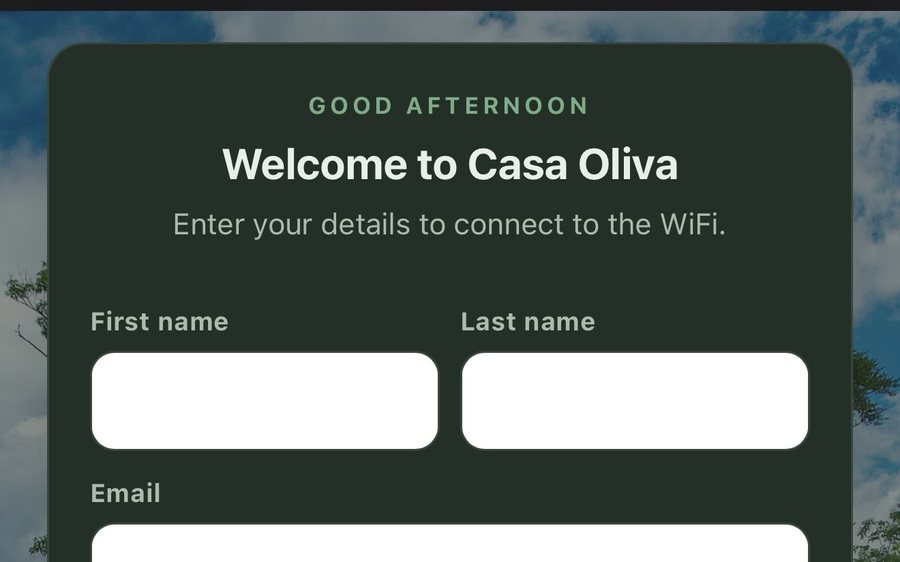
Guests join your network through a branded sign-in page and land in the guidebook. Every name and email is yours to keep. Runs on the UniFi gear you already own: $6 a network, the first free for 30 days.
Tabellara TV
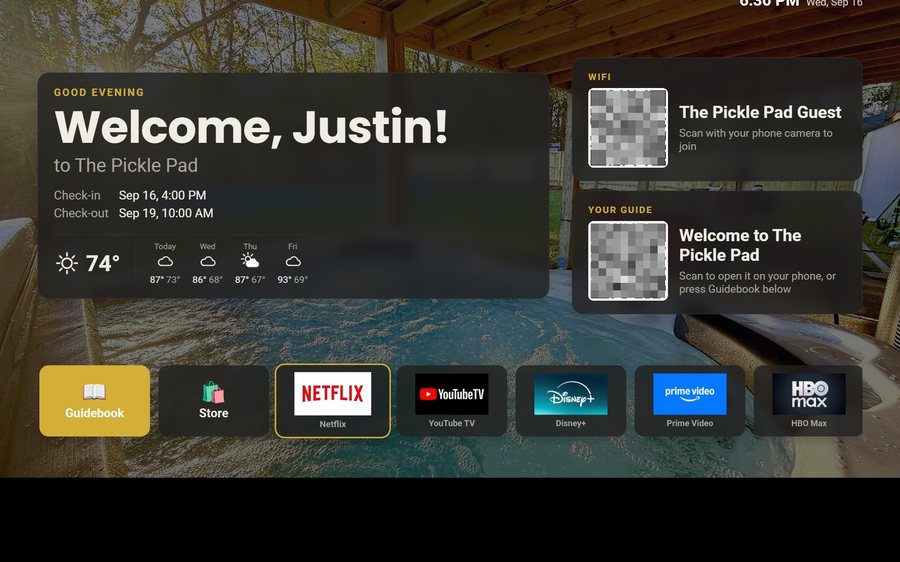
Your guidebook on the onn or Google TV in the living room: a welcome by name, the WiFi and guide codes on screen, and every app signed out at checkout. $6 a property for up to three TVs, the first free for 30 days.
Still stuck?
Email support@tabellara.com and a human will help; we usually reply the same day.
All help articles