HELP CENTER · INTEGRATIONS
OwnerRez integration
Connecting OwnerRez brings your whole hosting stack in: properties import with their listing content and photo galleries, AI writes a complete guide for each one, and for the properties you choose, reservations and guest contacts flow in so every booking gets its own personal guide link, sent from your own OwnerRez message templates.
Steps to complete your integration
- Connect your OwnerRez account (about a minute)
- Import the properties you want guides for
- Create a guide for each property with AI
- Review, tweak and publish
- Connect properties on Reservations for stay links and contacts
- Add {BXTABELLARA} to your OwnerRez message templates
- Preview it against a booking and attach a trigger
Step 1. Connect your OwnerRez account
- In your dashboard open Integrations and click Connect on the OwnerRez card.
- OwnerRez's own authorization screen opens. Sign in if asked, review the access it describes, and approve.
- You land back on Tabellara with the card showing Connected and your properties listed below it.
Tabellara reads your properties, listing content, bookings and guests, and writes exactly one thing back: each booking's guide link, into a custom field you control.
Step 2. Import your properties
- Tick the properties you want guides for.
- Click Import selected. Each becomes a property in Tabellara with its name, address and check-in and check-out times. Nothing else happens yet.
Step 3. Create a guide with AI
- Click Create my guide on an imported property.
- Wait a minute or two. Your photo gallery imports into the Library, and the AI writes the entire guide with your photos on the matching cards and real local restaurants and attractions mapped.
Every imported property gets the same full build. Swap the cover, theme, layout and fonts any time in the editor.
Step 4. Review and publish
- Read through each section beside the live phone and fix anything the AI phrased differently than you would.
- Add the cards only you know (trash day quirks, the sticky gate).
- Click Publish. Publishing uses one license; building and previewing are always free.
Step 5. Reservations and guest contacts
- Open Reservations.
- Next to a guide, pick the OwnerRez listing from the Property listing dropdown and click Connect.
- Bookings sync in within moments, each with a personal stay link, and stay current through OwnerRez webhooks. Your guest contacts appear on Contacts.
The dropdown pairs a listing's reservations with any published guide, so you can build with AI, copy your favorite as a template, perfect the copy, and connect the listing to that one.
Step 6. Send guide links with {BXTABELLARA}
Once a property is connected, Tabellara writes each booking's personal guide link into a custom field on the booking, for every channel and direct bookings alike.
- In OwnerRez go to Settings › Messaging › Templates.
- Open the template you send guests before arrival, or click Create Template and choose the Booking type.
- Put the cursor where the link belongs, click Insert Field and choose the Tabellara custom field, or type {BXTABELLARA}. Click Save.
The field code must read exactly {BXTABELLARA}. OwnerRez adds the BX prefix to every booking custom field, so {TABELLARA} on its own merges nothing.
Step 7. Preview it against a booking and attach a trigger
- In the template editor click Preview and choose a booking at a connected property. The field merges into that guest's full guide link.
- Under Settings › Messaging › Triggers, attach the template to a scheduled trigger, such as a set number of days before arrival. Every guest then receives their own link automatically.
Give the link a minute to land. Tabellara writes the field moments after a booking syncs, so set the trigger to fire a few minutes after the booking, or a set number of days before arrival, rather than the instant the booking arrives. If the preview shows the field blank, that booking predates the connection or its property is not connected on Reservations.
Disconnecting
Click Disconnect on the OwnerRez card. Synced reservation data is removed and stay links for those bookings stop resolving; your guides, photos, imported properties and Contacts stay. Reconnect any time and your imported properties pick up where they left off.
Common questions
What does Tabellara access in my OwnerRez account?
It reads your properties, listing content (descriptions, house manual, WiFi, photo gallery) and, for properties you connect on Reservations, bookings and guest records. It writes one thing: a Tabellara guide-link custom field on bookings. It never touches your calendar, pricing or messages.
Do direct bookings get guide links too?
Yes. Every booking that syncs gets a personal stay link, whether it came from Airbnb, Vrbo, your own website or was entered by hand, and {BXTABELLARA} merges the right link for each one.
What happens to guest contacts I import?
They live on your Contacts page, are kept current as guests book, and belong to you. OwnerRez marketing opt-outs are shown on each contact; honor them in anything you send.
My connection says it needs to be reauthorized.
OwnerRez sign-ins renew automatically, but if access was revoked from the OwnerRez side, the card asks you to Connect again. One click restores everything; nothing you imported is lost.
Go further
A guidebook is the start of the stay. These run on it, at the same properties, from the same dashboard.
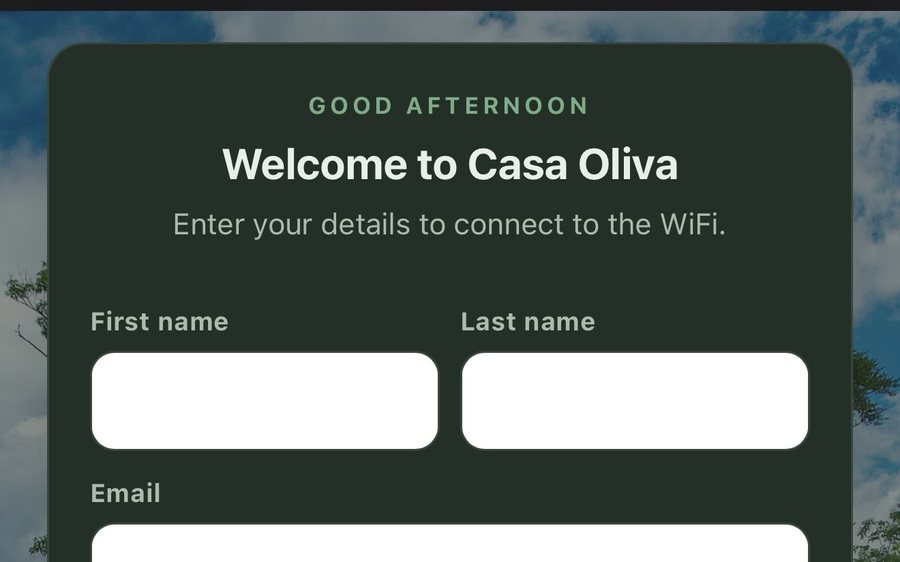
Guest WiFi
Guests join your network through a branded sign-in page and land in the guidebook. Every name and email is yours to keep. Runs on the UniFi gear you already own: $6 a network, the first free for 30 days.
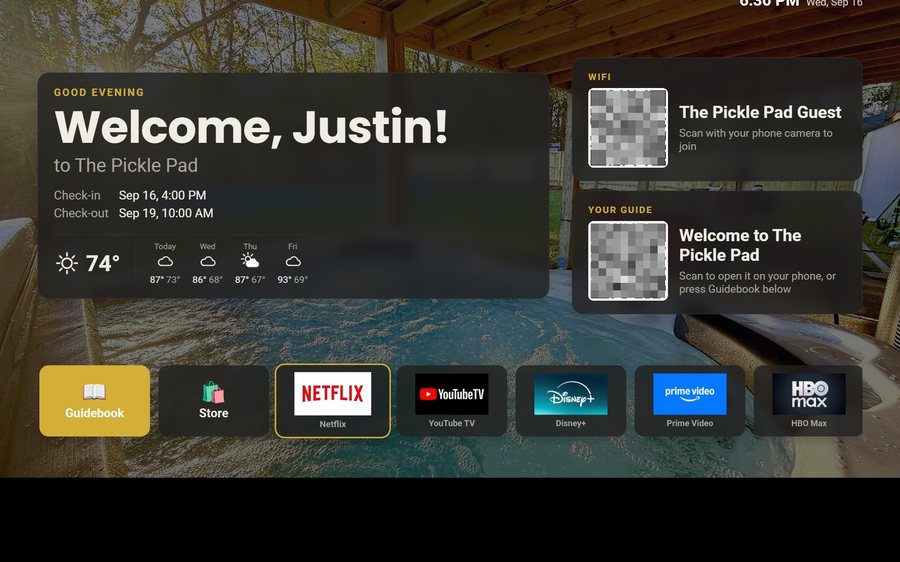
Guest TV
Your guidebook on the onn or Google TV in the living room: a welcome by name, the WiFi and guide codes on screen, and every app signed out at checkout. $6 a property for up to three TVs, the first free for 30 days.
Still stuck?
Email support@tabellara.com and a human will help; we usually reply the same day.
All help articles