HELP CENTER · LIBRARY AND CONTACTS
The Library: every photo, filed by property
Every photo you use anywhere in Tabellara, a guide cover, a card, a TV slide, a store item, lives in the Library. It is filed by property so a big collection stays findable, but any photo can be used in any guide. Imports from Airbnb and OwnerRez land here on their own; the AI build reads from here when it places photos.
What the Library does
How photos get in
- Upload photos on the Library page takes any image files, several at once, up to 8 MB each. A small dialog asks which property or folder to file them under.
- Photos you add inside the guide editor (a cover, a logo, a card picture) are filed under that property automatically and named after where you used them, such as Rainbow's End cover.
- Integrations › Import photos on the Airbnb card copies your listing's photos in at full size, with Airbnb's captions as their names. Importing twice never makes a duplicate.
- The AI guide build brings its photos into the Library the same way, so everything it placed is here for reuse.
Big phone photos are fine: the editor recompresses what it uploads, and the Library keeps the original size for anything you upload directly.
Filing: properties, folders and Unsorted
A photo is filed in exactly one place: a property, a folder you made, or Unsorted. The group picker at the top of the page switches between them; All photos shows everything.
- Pick + New folder… in the group picker to make a folder such as Neighborhood, Amenities or Logos: photos that belong to no single property.
- Tick photos, choose a destination under Move to…, and click Move. Select all shown ticks the page.
- Viewing a folder shows Rename and Delete folder. Deleting a folder moves its photos to Recently deleted, not into the void.
Filing changes nothing in your guides. A photo used on three guides keeps working wherever it is filed.
Names and AI captions
- Every photo has a name: click the text under it and type. Uploads start out named after the file; imports keep the listing's caption.
- Photos that arrive through an import or an AI build are also described by the AI: a short label, a two-sentence description and a category such as kitchen, hot tub or view. The label shows as the placeholder when you have not named a photo, and the category shows in List view.
- The AI build uses those descriptions to put the hot tub photo on the hot tub card. Naming a photo yourself overrides nothing; both are kept.
Plain uploads are not captioned by the AI until something uses them (an import or a build). Give them a name and search finds them by it.
Finding a photo
- The search box matches names and AI labels within the group on screen, and also searches The Tabellara collection, the license-free photographs included with every plan.
- List view shows name, category, where it is filed and the date added, and sorts like a table. Grid view is for looking.
- Load more at the bottom pages through a large library 48 at a time.
Using a photo
Wherever a picture can go, a Choose from library button opens the picker: This property or All properties, your photos first and the Tabellara collection beneath. That is the guide editor's cover, mobile cover, logo and card photos; the Journey's slides and background; store items; and the WiFi sign-in page.
The TV journey can draw its screensaver from the Library on its own: Only this property's photos shows guests the house they are in, without you picking slides one by one.
Deleting, and Recently deleted
- The ✕ on a photo moves it to Recently deleted, where it waits 30 days. Guides already using it keep it; the picker simply stops offering it.
- Open Recently deleted in the group picker to Restore photos or delete them for good. Photos from a deleted property wait on the same shelf.
- After 30 days the shelf empties itself.
Deleting a photo permanently does not pull it out of a guide that still uses it, so you never get a broken picture, but you also cannot bring it back from here. Change the guide first if you meant to replace it.
Next: Build your first guide →
Common questions
Is there a limit on how many photos I can keep?
No count or storage limit per plan. The only limits are per file: 8 MB for a direct upload, larger for what the guide editor recompresses on the way in.
Why did my Airbnb photos not import?
The Airbnb card imports the photos Airbnb serves for that listing. If the listing was just connected, give it a minute and try again; if a photo is on Airbnb but not in the import, re-save the listing on Airbnb so it refreshes.
Can I use one photo in two guides?
Yes. Filing is for finding, not for ownership. Pick **All properties** in the picker.
Where do deleted-property photos go?
To Recently deleted, for 30 days, so a property removed by mistake does not take its pictures with it.
Go further
A guidebook is the start of the stay. These run on it, at the same properties, from the same dashboard.
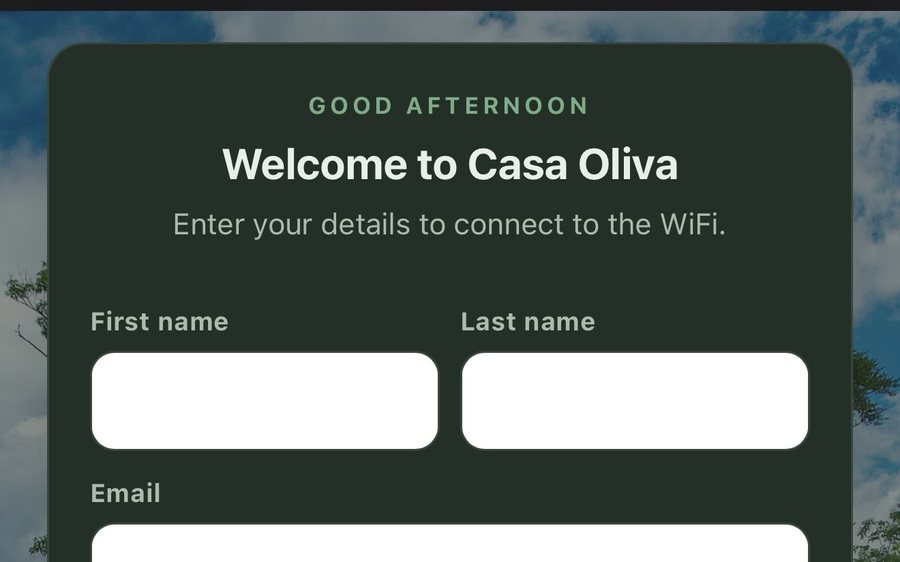
Tabellara WiFi
Guests join your network through a branded sign-in page and land in the guidebook. Every name and email is yours to keep. Runs on the UniFi gear you already own: $6 a network, the first free for 30 days.
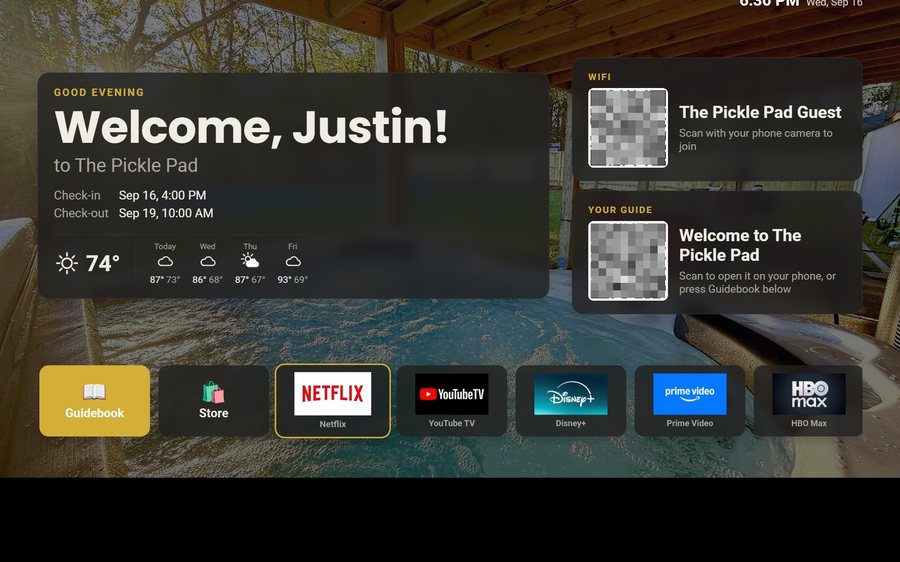
Tabellara TV
Your guidebook on the onn or Google TV in the living room: a welcome by name, the WiFi and guide codes on screen, and every app signed out at checkout. $6 a property for up to three TVs, the first free for 30 days.
Still stuck?
Email support@tabellara.com and a human will help; we usually reply the same day.
All help articles