HELP CENTER · GETTING STARTED
Quick links: buttons on your guide's home screen
Quick links are the buttons on your guide's home screen: Book direct next time, Early check-in or late checkout, Visit our website, Call or text us, Email us, plus anything you add. Each is a checkbox in the editor with an editable label and icon, and every tap is counted in Analytics.
Setting them up
Step 1. Find the Quick links card
In the editor, scroll past the cover and layout controls to the card titled Quick links, just above Guide sections. The five standard links each have a checkbox, an icon, a label and a destination, with + Add your own link underneath.
Step 2. Tick a link and give it a destination
- Tick the checkbox to turn a link on.
- Enter where it goes: a web address for the website and booking links, a phone number for Call or text us (guests get tap-to-call), an email address for Email us.
A link only shows to guests when it is on and has a destination, so half-finished ones stay hidden. Book direct next time is the money button: point it at your direct booking page and give guests a reason in the checkout section.
Step 3. Wording and icons
- Edit any label. The defaults are short on purpose because they render as buttons.
- Click the icon to choose a different one, or pick none for a text-only button.
The Editorial and Field Guide layouts hide icons by design to keep their typographic look.
Step 4. Placement and order
- Choose Above the sections for a direct-booking push, or Below the sections to let the house content come first.
- Use the up and down arrows to reorder. The live phone shows the result in your layout.
Step 5. Adding your own
+ Add your own link creates a custom button with any label, icon and destination: an early check-in purchase page, a house tour video, your Instagram. Custom links behave exactly like the standard ones, analytics included.
Common questions
Can I sell early check-in or extras through the button?
The button links to any page you control, including a checkout page from your booking software or a payment link. If you would rather sell inside the guide, the Guest Store handles the payment for you with a 2% fee.
Where do I see the taps?
In Analytics, each quick link appears as its own row, so you can compare how often guests hit Book direct against your website link.
Do quick links show on the TV?
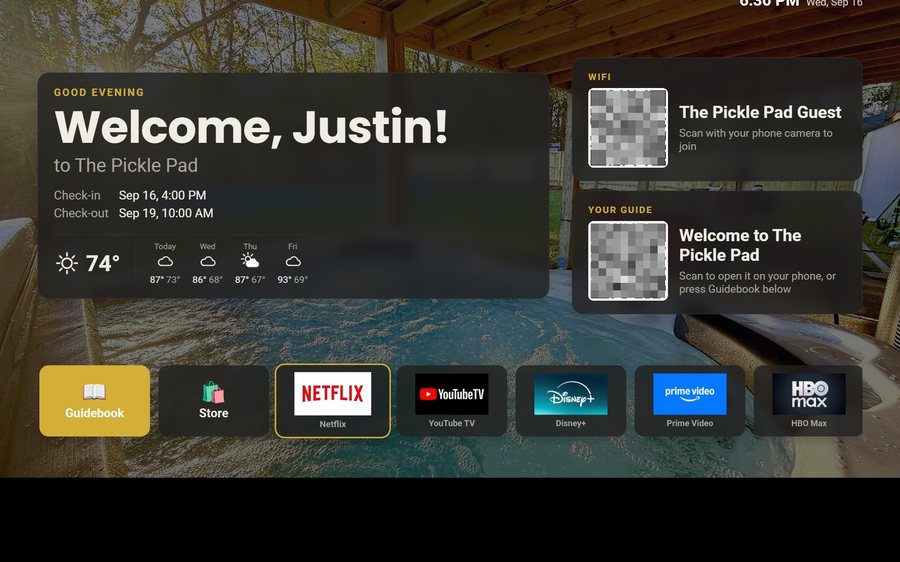
No. The TV home screen shows the guide, WiFi and store as codes a guest scans with a phone; quick links live on the phone guide itself.
Go further
A guidebook is the start of the stay. These run on it, at the same properties, from the same dashboard.
Guest WiFi
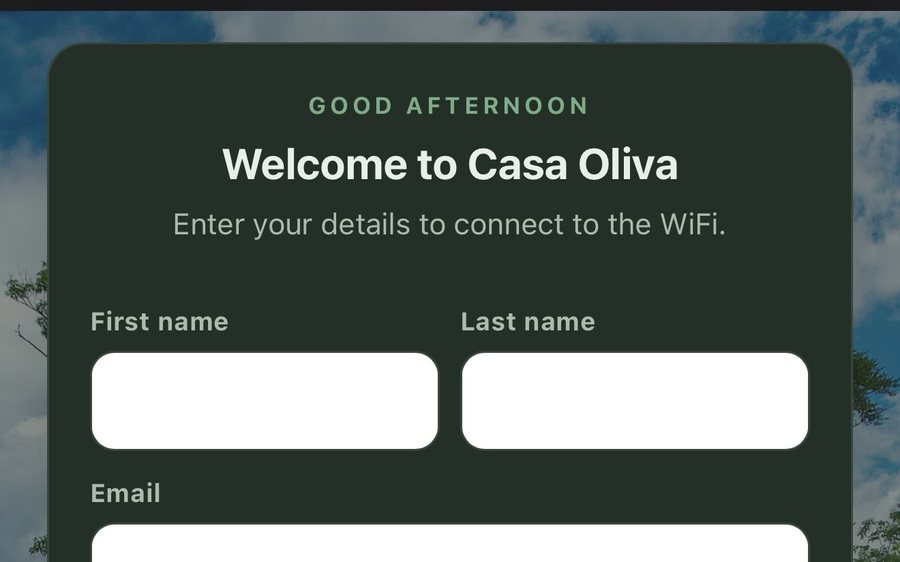
Guests join your network through a branded sign-in page and land in the guidebook. Every name and email is yours to keep. Runs on the UniFi gear you already own: $6 a network, the first free for 30 days.
Guest TV
Your guidebook on the onn or Google TV in the living room: a welcome by name, the WiFi and guide codes on screen, and every app signed out at checkout. $6 a property for up to three TVs, the first free for 30 days.
Still stuck?
Email support@tabellara.com and a human will help; we usually reply the same day.
All help articles