HELP CENTER · MULTI-PROPERTY
Templates and multi-property guides
If you manage more than a couple of properties, most of each guide is the same: house rules, checkout, what to bring, how to reach you. Three tools make that work happen once. **Copy** makes a snapshot the new guide owns. **Link** keeps a section in sync with a template guide, so one edit updates every linked property. **Fill-in fields** let a shared card read each property's own WiFi, times and address.
What you will do
Step 1. Start a new property from a guide you already have
- Click New guide on the dashboard.
- Under Start from an existing guide, pick any guide. Templates are marked with a star.
- Tick the boxes to also copy the theme, layout, cover, logo, welcome message and quick links, then create the property.
Two other starting points live in the same dropdown: a blank starter with short placeholders, and a fully written sample guide where you only swap the [bracketed] details.
Step 2. Mark a guide as your template
- Open the guide you want to share from, usually your best one.
- Tick Use this guide as a template, just under the publish bar.
It keeps working as that property's guide, published or not. The only change is that other guides can now link sections from it. On the dashboard its card shows a star.
Step 3. Link sections into another guide
- Open a property guide and click Import from another guide at the top.
- Choose the template (starred, listed first).
- Choose Link to keep the sections in sync with the template, or Copy for an independent snapshot.
- Tick the sections you want (House Rules, Checkout, Before You Arrive) and click Import.
If the guide already has a section with the same name, you will have both for a moment. Delete the old local one, or use Copy with Replace sections that have the same title.
Step 4. What a linked section looks like
Linked sections are tinted and carry a bar: Linked from <template>, with Edit in template and Unlink. Their title, icon and cards come from the template and are read-only here. Everything else in the guide stays yours: add the hot tub card, the arcade, the parking quirk.
Step 5. Edit once, update everywhere
Make changes in the template's editor. Every guide that links the section shows the change immediately: editor preview, published page, PDF and deep links. In the template, each section shows Linked by N guides with their names.
Step 6. Fill-in fields for details that differ per property
A shared card can still read each property's own settings.
- In the template, click the chips under the card body to insert fields like {{wifi.network}}, {{wifi.password}}, {{checkin.time}}, {{checkout.time}}, {{address}} and {{property.name}}.
- Each linked guide fills them from its own property settings.
Step 7. Copy single sections or cards instead
- Every section has Copy to… (all its cards).
- Every open card has Copy to another guide… at the bottom of its editor.
- Pick one or many target guides. The cards land in each guide's section of the same name, created if missing, as independent copies.
Step 8. Unlink, remove, delete
- Unlink turns a linked section into the property's own copy. It stops following the template.
- Remove takes a linked section out of that guide only.
- Deleting a section in the template that other guides link asks what to do: remove it from those guides too, or leave them their own copies.
Common questions
Can a template be published?
Yes. A template is a normal guide plus the ability to be linked from. Your best live guide is usually the right template.
Can I link from more than one template?
Yes. Each linked section points at one template section; a guide can link sections from several templates.
Does linking count against licenses?
No. Licenses are per published guide. Templates and links are free on every plan.
Go further
A guidebook is the start of the stay. These run on it, at the same properties, from the same dashboard.
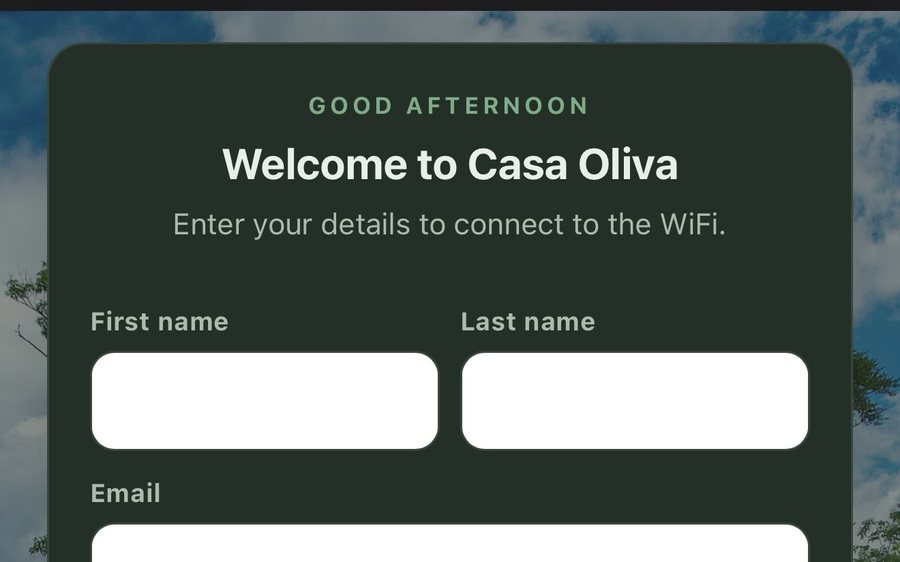
Guest WiFi
Guests join your network through a branded sign-in page and land in the guidebook. Every name and email is yours to keep. Runs on the UniFi gear you already own: $6 a network, the first free for 30 days.
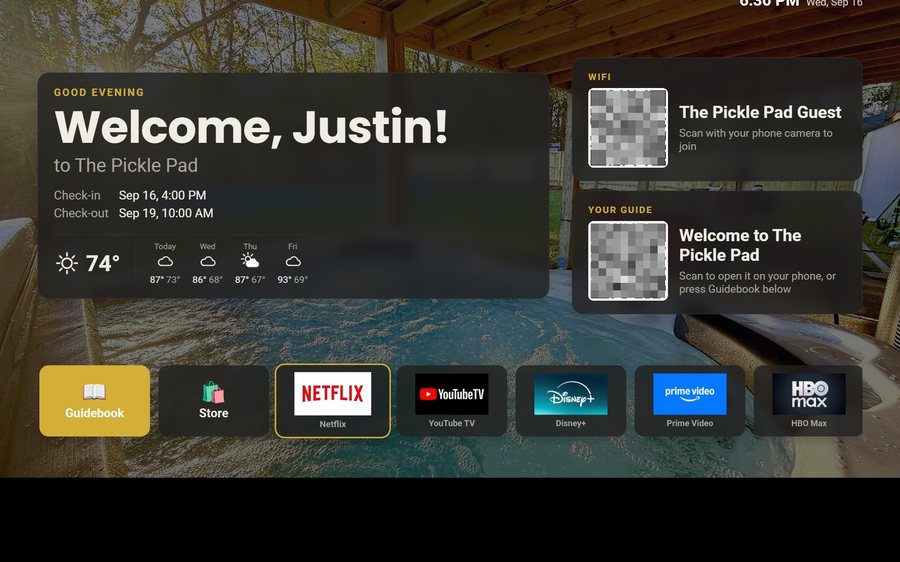
Guest TV
Your guidebook on the onn or Google TV in the living room: a welcome by name, the WiFi and guide codes on screen, and every app signed out at checkout. $6 a property for up to three TVs, the first free for 30 days.
Still stuck?
Email support@tabellara.com and a human will help; we usually reply the same day.
All help articles