HELP CENTER · TABELLARA TV
Run your Google TV
Once a TV is claimed, everything it does during a stay is set on two pages: the TV's card on **Screens** (the account, the apps, the host controls) and the **Journey** tab (what shows when, from arrival to checkout). The defaults already work; this article is the tour of what each switch does, in the order a stay happens.
What the TV does for you
- 1. The house Google account and its apps
- 2. The welcome by name
- 3. The two QR codes
- 4. Ask how the stay is going
- 5. Notices, checklists and messages on the screen
- 6. The screensaver: your photos, store cards and Viator tours
- 7. Checkout morning: the thank-you
- 8. After checkout: the sign-out, the power and a note for the cleaners
- 9. Open the TV's settings with the host code
- 10. Try a whole stay in the simulator
1. The house Google account and its apps
Streaming apps come from the Play Store, and Google only installs them for a signed-in account. The TV keeps a spare account made for the house, and guests sign into Netflix and the rest on top of it.
- Open Screens, find the TV's card and scroll to House Google account. It shows Signed in as the house account, or a sign-in form if there is none yet.
- Under Install or remove apps from the Play Store, pick an app. The TV opens its Play Store page, presses Install for you, and locks the store again. The list is per property: a new TV at the same house installs the same set the moment it signs in.
- Under Apps to clear guest sign-ins after checkout, every app is ticked. Untick one to keep it signed in for the next guest, for example a music app on the house account.
Guests can see the house account's name on the TV, so give it a plain name like the property's. Never a personal account: it would show its saved passwords and watch history to every guest.
If the card shows The Play Store no longer accepts this account, Google wants a fresh sign-in, usually after a password change or a security hold. Click Sign in again, enter the house account, and the apps stay in place. You also get an email when this happens.
2. The welcome by name
From midnight on arrival day the TV reads Arriving today, and from check-in time it greets the guest by first name with their dates and the weather, over your guide's cover photo.
- Open Journey, choose the property, and find Welcome the guest by name under Arrival.
- Click Edit the wording to change the headline and the line under it. Use {{guest.first_name}} for the guest and {{property.name}} for the house; leave a field empty to keep the built-in line.
- Under Background, pick a photo from the Library or Upload one; Back to the cover restores the guide's cover. 16:9 fills the screen and crops a taller photo, 4:3 shows the whole photo with blurred edges.
- The Which screens buttons turn the name on or off per TV. Off means a plain welcome with no name, for a TV in a shared space.
Turn the TV on before they walk in, just above, switches the television on over HDMI-CEC a few minutes before check-in and off again after checkout. It needs a TV whose HDMI port passes CEC, which most do; if yours stays dark, look for CEC in the TV's own settings under a brand name like Anynet+, Bravia Sync or SimpLink.
3. The two QR codes
Beside the welcome sit two codes the guest scans with their phone: the WiFi at the top, the guidebook underneath. The guide code opens their personal copy, with their name and dates filled in.
- On Journey, find The two QR codes on the home screen under Arrival.
- Click Edit next to a TV to change either slot: WiFi, The guidebook, The store, Book direct, A link of your own, or None.
- Click a TV under Which screens to take both codes off that screen, and again to put WiFi and the guide back.
The WiFi code carries the network name and password, so the TV shows the password in words too. If you would rather not, put the store or your booking page in that slot and leave WiFi to the guidebook.
4. Ask how the stay is going
Once per stay the TV asks the guest for a star rating, picked with the remote. Four and five stars are sent to your public review page; one to three are asked what went wrong, and the answer comes to you privately.
- On Journey, find Ask how the stay is going under During the stay. The switch turns it on or off for the property; Which screens narrows it to some TVs.
- Under When to ask, choose The morning after the first night, The day before checkout, or Checkout day. The question stays on screen until someone answers.
- Paste your Public review link: a Google review link or your Tripadvisor page. With a link, four and five stars are sent there to leave a review. Without one, they are asked what they loved instead.
- Click Edit the question to change the wording. It is generic by default so everyone in the party feels asked.
- Read every answer under Analytics › Ratings. Each also arrives by email.
The guest can say their answer into the remote or type it on their phone from a code on the screen. Nothing they write is posted anywhere; only the public link is public, and only they can post there.
5. Notices, checklists and messages on the screen
Anything you would otherwise tape to the fridge can go on the TV at the moment it matters: trash night every Tuesday, a pool-hours line, a checkout checklist the evening before checkout.
- On Journey, click + Add a step in the section for the moment: Before arrival, Arrival, During the stay, The day before checkout, Checkout morning or After checkout.
- Choose where it shows: Notice strip (one line above the app tiles), Headline (takes the welcome panel with a title and bullet lines, the checklist option), Card on the right (in place of the guide code), or Full screen (a poster over everything until the guest presses a button, once a day).
- Set the day and the from and until times. A step under During the stay can repeat on chosen weekdays.
- Add a picture with Upload for a card or a poster; with no words at all, the picture fills the panel by itself.
- The same editor offers Message the guest on a connected booking platform, so a reminder can go to their inbox instead of the screen.
Mark a notice Alert to give it a red edge. Keep emergencies (a water shut-off, a road closure) on the Screens page under Notices, where they go to every screen at once and come down when you say.
6. The screensaver: your photos, store cards and Viator tours
When nobody has touched the remote for a while, the home screen gives way to a slideshow behind the clock. Between stays the same slides run all day. Any button brings the welcome back.
- On Journey, find the screensaver step under During the stay. Slides start after sets the idle minutes per TV, and The TV goes to sleep after turns the television off after an idle hour or more, waking on its own for the next guest.
- Under Photos, choose Only this property's photos (your Library for the house), Only my slides (pictures you add here), Only the guide's photos, or My slides, then the property's photos.
- Click + A link with a QR code to add a slide that sells: Book direct next time with your booking page, a picture, and a code guests scan from the couch.
- Tick Show store items with a QR code to order to put your Guest Store items in the rotation: late checkout, a welcome basket, each with its own code. Which items narrows the set.
- Tick Show Viator experiences with a QR code to book to add the twelve best-rated tours near the house. Guests book on viator.com and you earn 4% of every booking. See or choose the experiences lets you hand-pick up to twelve.
Viator needs a published guide with an address and a live Guest Store, because the store is where the commission is paid out. The same tours appear as a Local Experiences section in the guidebook.
7. Checkout morning: the thank-you
On checkout morning the welcome panel changes to a thank-you with the checkout time, so nobody has to ask.
- On Journey, under Checkout morning, find Thank them and show the checkout time. It has its own wording, separate from the welcome, and its own weather checkbox.
- A checkout checklist belongs the evening before: add a step under The day before checkout as a Headline, one line per task (see step 5).
The rating question, if set to Checkout day, takes the panel over the thank-you until someone answers.
8. After checkout: the sign-out, the power and a note for the cleaners
At checkout time plus a grace period, the TV signs the guest out of every app, removes any account they added, and turns the television off if you let it.
- On Journey, under After checkout, set Reset runs to the minutes after checkout time. Reset the screens for the next guest is the switch per TV; which apps are cleared is the list on the TV's card from step 1.
- Turn the TV off chooses With the reset, or a later time that leaves it on for the cleaners. Click a screen to turn power control on or off for it.
- A note for the cleaners, between stays replaces the welcome panel while nobody is checked in: a title and a list, like a turnover checklist.
- Photos between stays picks what runs behind the clock while the TV is on with nobody staying.
Sign the guest out now on the TV's card does the same reset on demand. Do not press it to test while a guest is in the house: it signs them out of everything.
9. Open the TV's settings with the host code
The TV's own Settings menu is locked to guests: WiFi, accounts, apps, inputs, display and sound stay as you set them. Guests keep the remote's volume, power and voice buttons, the app tiles and their own sign-ins.
- On Screens, open the TV's card and find Host controls. Click Unlock TV settings remotely for 15 minutes, or read the Host settings code off the card and enter it on the TV.
- Settings lock again by themselves after fifteen minutes, or sooner with Lock now. New code replaces the code if it has been seen.
- For a games console or a cable box, guests use the Inputs tile on the home screen; nothing to unlock.
Tick Let Tabellara support connect on the card only when we ask; it opens the box to support tools on the house WiFi for that session and is off by default.
10. Try a whole stay in the simulator
Every switch above can be seen on a pretend stay before a real guest arrives.
- On Journey, click Stay simulator at the top. Pick the nights, an arrival date and a screen.
- Step through the days and times. Each shows the TV exactly as that guest would see it: the welcome, the rating question, your notices, the thanks on checkout morning.
The simulator's guest is always Justin, and nothing it shows reaches a real TV.
Common questions
Can guests change the settings or install apps?
No. Settings, the account list and the app installer are locked to the host code. Guests can open the apps on the tiles and sign into them, and every one of those sign-ins is cleared at checkout.
A guest signed into their own Google account. Is it cleared?
Yes. The checkout reset removes any account a guest added and signs out of every app on the list, then the house account is back where it was.
Where do the low ratings go?
To you only: an email at the time, and the list under Analytics › Ratings. Nothing a guest writes on the TV is published anywhere. A four or five with a public review link is sent to that page, where the guest decides what to post.
Can I show the photos all day, not just as a screensaver?
Between stays they already run all day while the TV is on. During a stay the welcome stays up so the codes are always there; set Slides start after to 5 minutes for the closest thing to always-on photos.
Does any of this change my guidebook?
Only the Viator tours, which appear as a Local Experiences section in the guide while the switch is on. Everything else is TV-only.
Go further
A guidebook is the start of the stay. These run on it, at the same properties, from the same dashboard.
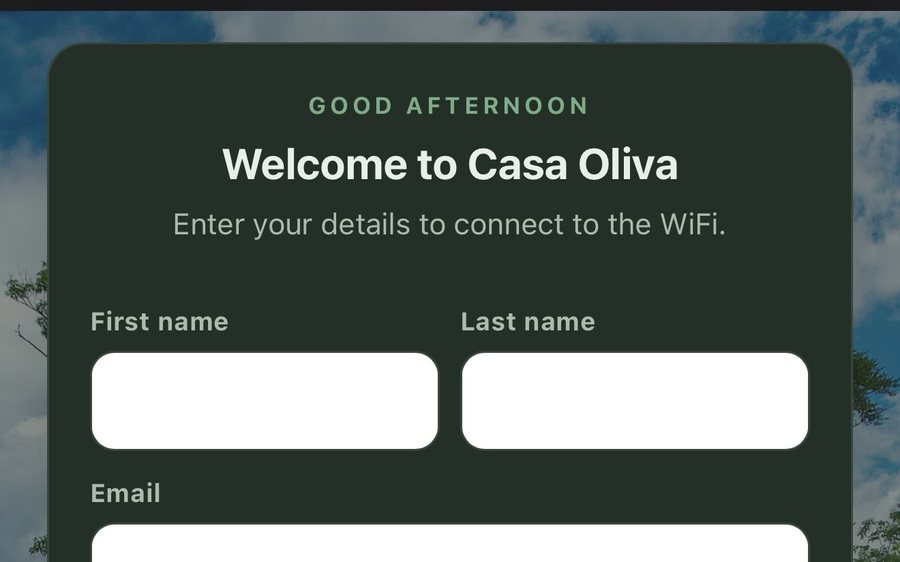
Guest WiFi
Guests join your network through a branded sign-in page and land in the guidebook. Every name and email is yours to keep. Runs on the UniFi gear you already own: $6 a network, the first free for 30 days.
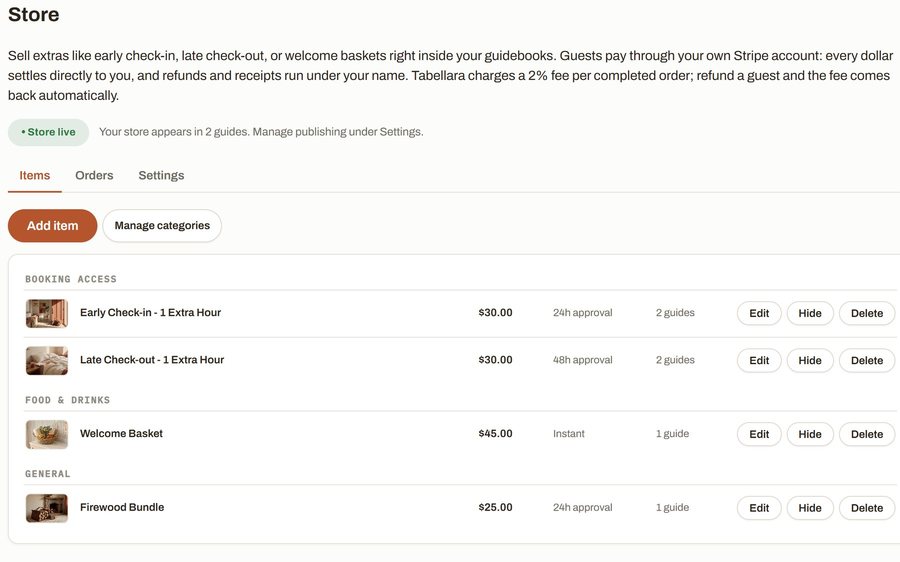
Guest Store
Sell late checkout, a welcome basket or firewood from inside the guide, paid through your own Stripe account. 2% per completed order and no license.
Still stuck?
Email support@tabellara.com and a human will help; we usually reply the same day.
All help articles