HELP CENTER · GUEST WIFI
Design the WiFi sign-in page
The sign-in page is what guests see the moment they join your guest WiFi: your property's name, your photo, your colors, and a name-and-email form that puts them online and lands them in your guidebook. It follows your guide's look automatically, and its own editor shapes everything on top.
The editor, top to bottom
Step 1. Words
- Open Guest WiFi in your dashboard and click Edit sign-in page on the network.
- In the Words card, set the headline and the welcome message, plus alignment. Leave a field empty and the grey suggestion is used.
- Tick Greet guests by time of day for Good morning or Good evening.
Step 2. Theme
- Match my guide keeps the sign-in page in step with the paired guidebook's theme.
- Or pick any of the fifteen theme colors, or open Custom colors for exact brand values.
Step 3. Look
- Upload a logo, or pick one from your Library.
- Choose a background: a photo from your Library or a solid color.
Step 4. Terms and consent
- Choose your WiFi terms of use: the built-in template, a link to your own page, or a PDF.
- Edit the marketing consent checkbox wording. The wording each guest agreed to is recorded with their signup.
Step 5. Preview and save
The phone preview updates with every keystroke, and the Desktop toggle shows the full-screen splash. Click Save: changes go live to the network within moments.
The Connect button on the preview only works on your real guest WiFi. The preview is for looks.
Common questions
What happens after a guest signs in?
They are online for 30 days without signing in again, they land in the paired guidebook, and their name and email become a contact on your account, with the recorded consent wording.
Can each property have its own sign-in page?
Yes. Every network pairs with a guide and has its own sign-in page, words and look, so one account can run different branding per property.
Go further
A guidebook is the start of the stay. These run on it, at the same properties, from the same dashboard.
Guest TV
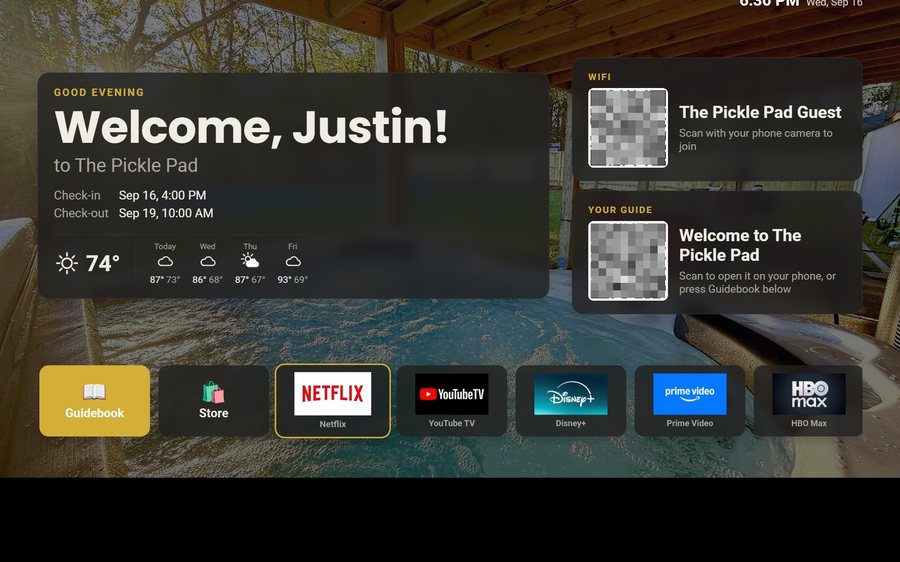
Your guidebook on the onn or Google TV in the living room: a welcome by name, the WiFi and guide codes on screen, and every app signed out at checkout. $6 a property for up to three TVs, the first free for 30 days.
Guest Store
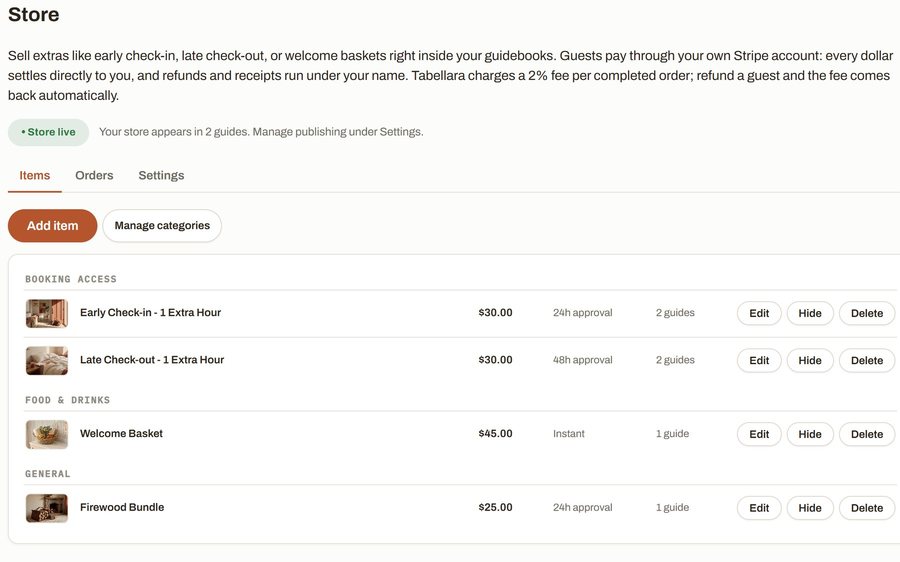
Sell late checkout, a welcome basket or firewood from inside the guide, paid through your own Stripe account. 2% per completed order and no license.
Still stuck?
Email support@tabellara.com and a human will help; we usually reply the same day.
All help articles