BLOG · OCTOBER 28, 2026
Smart TVs in your rental: stop resetting streaming logins
Guests sign in to their own Netflix and forget to sign out. Here's how to get a clean TV for every guest without a turnover checklist, and what to look for in a guest mode.
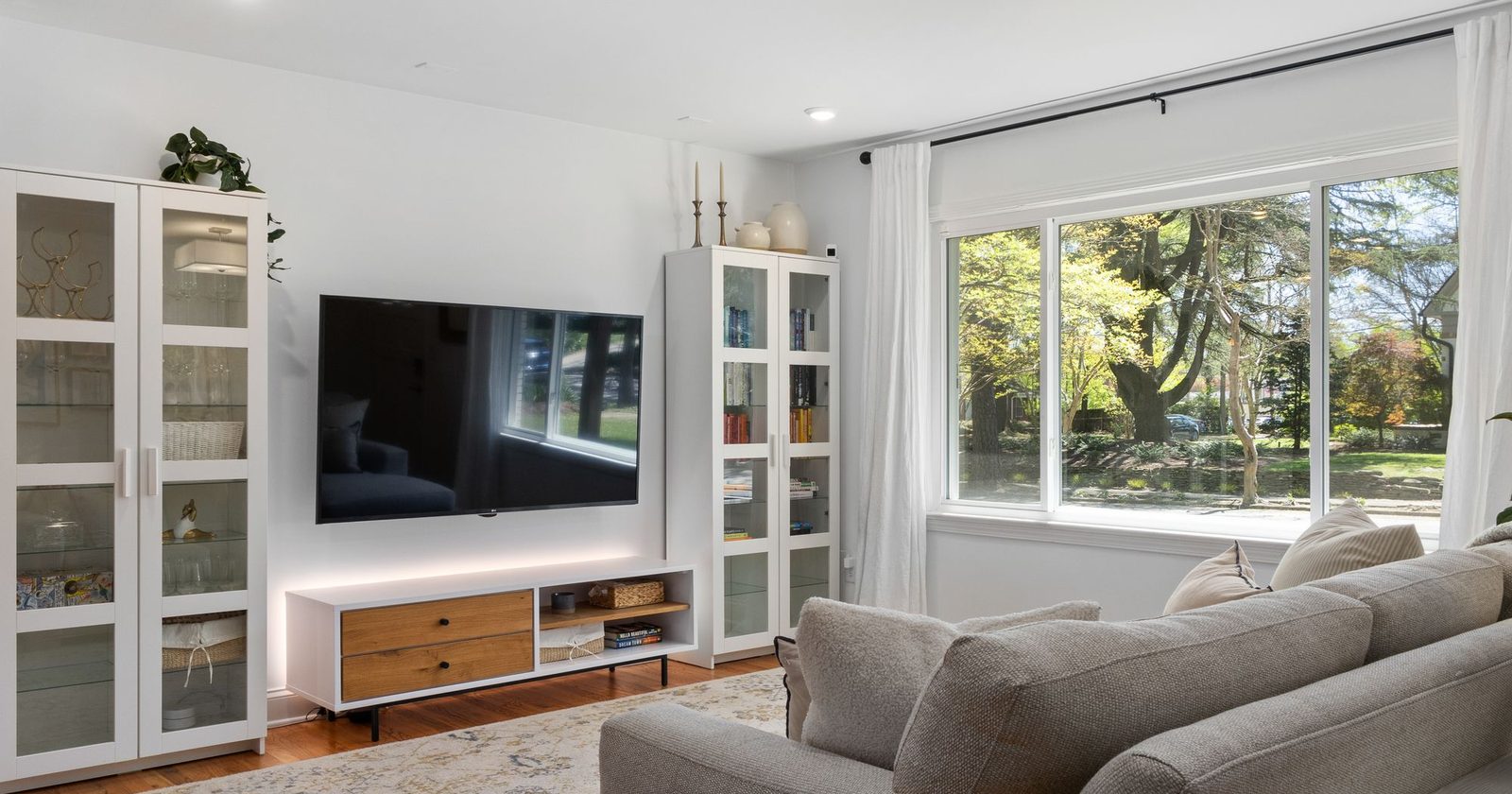
Ask hosts about the TV in their rental and you'll hear the same story. The last guest's Netflix profile is still signed in, the cleaner doesn't have time to sign out of six apps, and the next guest either watches on a stranger's account or messages you asking how to log out.
Hosts on Reddit say the same thing. One three-unit beach host recently listed "smart TVs with every app logged in" among the things that didn't work for them, because resetting accounts ate up their time.
The TV is a small thing until it isn't. It's often the first screen a guest turns on, and it's where a bad first impression ("someone else's account is on here") turns into a message to you. Here's what's actually going wrong, and how to fix it.
The four TV problems hosts keep hitting
- Guests stay signed in. They log in to Netflix, a sports app, sometimes their own Google account, and leave. The next guest can see it, and so can you.
- Your own accounts end up on the TV. It's tempting to sign in to your streaming services "for the guests." Then strangers see your watch history and you have no idea how many people are using your login.
- "The TV says no signal." Someone pressed Input, or a console got plugged in, and now the guest can't find their way back.
- Nobody can find the TV instructions. They're on a laminated card behind the sofa, or page 14 of the guidebook.
Decide whose accounts live on the TV
Keep your personal paid streaming accounts off the rental TV. Aim for a TV where guests sign in to their own accounts, or cast from their phones, and where something clears those sign-ins when they leave. Then the question is just who does the clearing: your cleaner, a setting on the TV, or software that runs the TV for you.
If a host account like Netflix is yours and you suspect it's been shared around, Netflix lets you sign out of one or all devices from its Manage Access and Devices page.
Built-in guest modes: what to check
Some TVs and streaming sticks come with a guest or hotel mode built in. What they do varies a lot by brand and model, so before you rely on one, check it against these questions:
- Does it know when checkout is? Or does the guest have to pick a date on a welcome screen, and what happens if they pick wrong or check out late?
- What does it actually clear? App sign-ins only, or also any account the guest added and what they watched?
- Can a guest change things you care about? Settings, the account list, the app installer, the home screen.
- Can you run it from your desk? Signing a guest out early, or fixing something mid-stay, without driving over.
- Does it help the guest, or only protect you? A sign-out is half the job. The other half is the WiFi, the guidebook and the checkout time.
- Does it work on every TV you own? A guest mode that only exists on one brand doesn't help the bedroom TV.
A built-in mode that clears sign-ins reliably is much better than nothing. Ask the same questions of any setup, including ours.
How Tabellara TV handles it
Tabellara TV is our answer to this. It runs the television for each stay rather than adding an app on top. Here's what it does, start to finish:
- It knows the reservation. Bookings sync from Airbnb or OwnerRez, so there's nothing to enter and no date for the guest to pick.
- It wakes up before they arrive. The TV can switch itself on over HDMI-CEC ahead of check-in, at a lead time you choose, and off again after checkout.
- It greets the guest. A welcome by first name, their stay dates and the weather, with a QR code to join the WiFi and one to open your guidebook on their phone, over a photo of your place. You can turn the name off per TV, for a TV in a shared space.
- Guests use their own accounts. They sign in to Netflix and the rest from the app tiles, exactly as on any Google TV. The apps install from a house Google account you make just for the TVs, never your personal one.
- Checkout wipes it. At checkout time plus a grace period, the TV signs every app out, removes any account a guest added, clears what they watched and goes back to the between-stays screen. You choose which apps get cleared.
- Settings stay put. The settings, account list, app installer and home button are locked to the welcome screen. An Inputs tile still lets guests switch to a game console or cable box. You can unlock settings from your dashboard with a host code that expires after 15 minutes.
- The guidebook is on the big screen. Press Guidebook on the remote and the whole guide opens on the TV: arrival, the house manual, where to eat, things to do.
- You can talk to the room. Post a notice above the app tiles, show a checkout checklist the evening before, or put a red emergency bar across every screen at the property.
- It survives an outage. The TV keeps a copy of your guide and upcoming stays, so the welcome, the codes and the guidebook stay on screen if the internet drops.
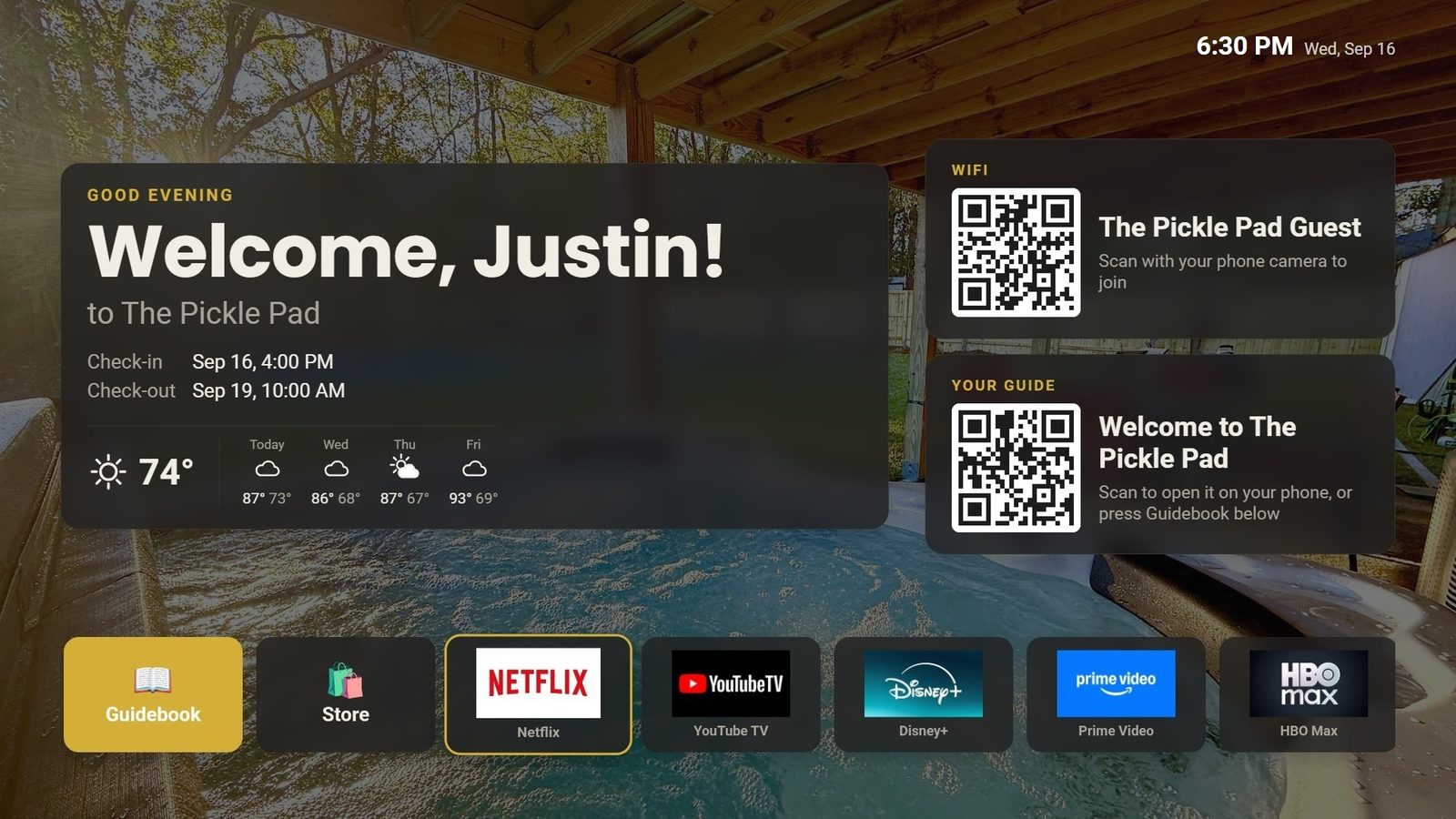
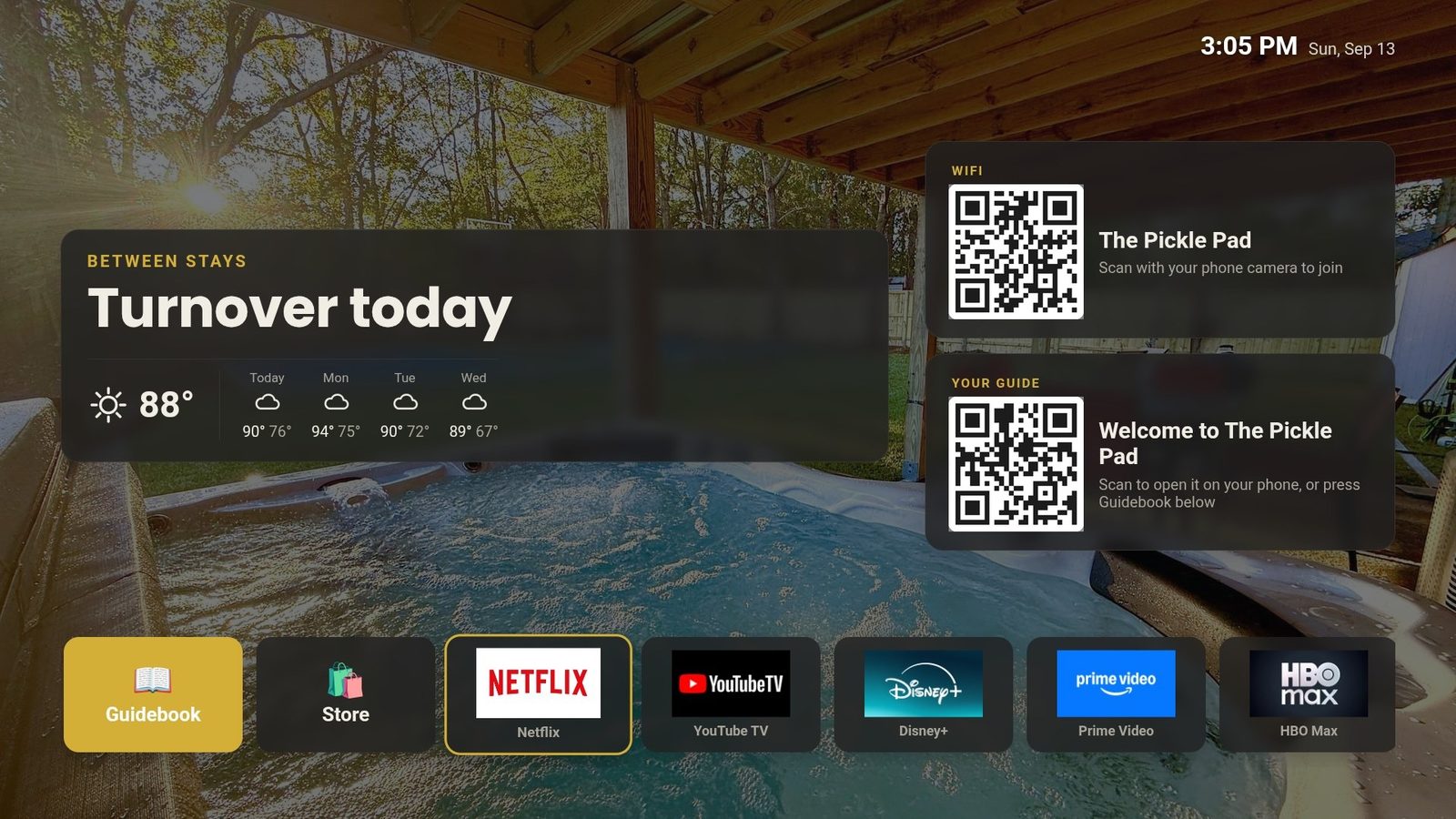
After checkout, the same TV goes back to a between-stays screen with no guest name and nobody signed in:
A few things it deliberately doesn't do: no third-party ads or vendor channels, no card numbers typed on the TV (purchases go to the guest's phone by QR code), and no record of what guests watch.
It runs on onn boxes, the Google TV Streamer, Chromecast with Google TV, and TVs that run Google TV or Android TV, including Hisense and TCL sets. TVs that run their own operating systems aren't supported. Setup takes about ten minutes with a laptop on the same WiFi as the TV, because the app has to be the device's owner to sign guests out and lock settings, and Android only allows that during setup.
A note on the stay question
Tabellara TV can ask guests once per stay how it's going, with stars on the remote. One to three stars come to you privately, so a problem on the first night reaches you while you can still fix it. Four and five stars go to a public review link if you add one; without one, guests are asked what they loved instead. For Airbnb reservations booked on or after November 20, 2026, hosts may not "ask guests to review an Airbnb stay or fill out a survey on a separate website, unless the listing is a hotel" (Airbnb help article 4169), so leave that link empty for those stays.
Tips that help with or without us
Label the inputs and simplify the remotes
- One remote per TV if you can. Put the others in the owner closet.
- Label the input the streaming device uses ("HDMI 1") on a small sticker on the TV bezel or the remote.
- Turn on HDMI-CEC (TV makers give it different names) so the TV switches to the streaming device when it wakes up. Test it after a power cut.
Make casting work
A lot of guests never touch the TV's apps. They cast from their phone, because that's where their accounts already are.
- Put the streaming device on the guest WiFi network. Casting needs the phone and the TV device to see each other.
- Test casting from your own phone on the guest network. If your router has guest or client isolation turned on, casting may not work. Ubiquiti, for example, notes that device isolation blocks "discovery and casting protocols" (source).
- Give each TV a plain name like "Living room," so guests pick the right one from their phone.
Keep welcome screens tasteful
In a recent r/airbnb_hosts thread about TV apps, hosts pushed back hard on welcome screens, calling some "creepy" and asking for the TV to keep its basic functionality. That's fair feedback, and we take it seriously. Whatever you use:
- The TV should still work like a TV in one button press. If the guest can't get to their apps right away, it's in the way.
- Show useful things only: WiFi details, a guidebook QR code, checkout time. Skip anything that feels like an ad.
- Be careful with personal touches. A first name feels warm to most guests. Where it might not, turn it off.
- No cameras or microphones watching the room, and nothing that tracks what people watch.
- Don't use it to announce new rules. Under Airbnb's new house rules policy (for bookings from Nov 20, 2026), rules and requests have to be in the listing before booking, not added "by message, signs in the home, or in person" (Airbnb 4168). The policy doesn't mention TVs by name, but an on-screen message does the same job as a sign, so keep any on-screen checkout steps identical to your listing.
Quick TV checklist
- No host personal streaming accounts signed in
- Guest sign-ins and added accounts cleared automatically at every checkout
- Settings and home screen locked, inputs still reachable
- WiFi and guidebook codes on the TV's home screen
- Casting tested on the guest network
- One remote per TV, input labeled, HDMI-CEC tested
- Any welcome screen gets out of the way in one press
- On-screen checkout steps match the listing word for word
A note on the rules
This is general information, not legal, tax, or financial advice. Airbnb can change its policies and how it applies them, and local laws, HOA rules and other platforms' terms vary by location. Check the current wording of the linked Airbnb articles and your local rules, or talk to a qualified professional.
Your next step
Watch it first. The full setup on a real onn box, from developer options to the Guest Journey, is the five-minute video at the top of this post.
Pick the TV your guests use most and set it up with the Set up your Google TV guide. It takes about ten minutes with a laptop on the same WiFi, and your first property runs free for 30 days.
Sources
- Netflix Help Center, How to sign out of a device: https://help.netflix.com/en/node/128180
- Ubiquiti Help Center, Managing Broadcast Traffic with UniFi: https://help.ui.com/hc/en-us/articles/27384925962647-Managing-Broadcast-Traffic-with-UniFi
- Airbnb, house rules and requests policy (reservations booked on or after Nov 20, 2026): https://www.airbnb.com/help/article/4168
- Airbnb, personal data, reviews and recommendations policy (reservations booked on or after Nov 20, 2026): https://www.airbnb.com/help/article/4169
- Tabellara Help, Run your Google TV: https://tabellara.com/help/run-your-google-tv
Your guest guide, written in about a minute.
Connect your listing or upload the guidebook you already have, and AI drafts every section. Free for 30 days, no card required.
Try it free